Tuesday, May 5, 2020

How to Create a Website With WordPress

Creating a website used to be a massive project.

And expensive too.

Everything had to be built by hand and businesses needed to work with an online marketing agency that would charge them tens of thousands of dollars to build the site. If you wanted a professional-looking site, that was your only option.

Things have gotten a lot cheaper over the years.

Now it’s possible to get a polished site for less than $100. About $10 to buy the domain, $30–60 for a good template, and $5–10/month to host it. It’ll look so good that people won’t even realize that you built it yourself. It’ll look like some high-flying marketing agency built it for you.

Not only has it gotten cheaper, it’s also gotten a lot easier.

Note that there’s a number of approaches you can take to creating a website. More on that later—let’s dive right in.

A Step-by-step Guide to Creating a Website With WordPress

I’ve broken down the 9 simple steps to create your website from scratch. You’ll easily be able to run through these steps over the next 120 minutes.

Step 1: Pick a name and find a domain for your website

These are not two separate steps, unfortunately.

I really wish I could sit down, pick any name that I want for my business, and be able to create the site that I want around that name. Now that the internet is a couple of decades old, we all have to face the reality that most of the good domains have been taken.

Here’s how a naming session always seems to go for me:

  1. In a moment of inspiration, we think of an amazing name.
  2. We hold on to this name for months, maybe even years.
  3. It’s time to start the business, so we go to purchase the domain.
  4. The domain is taken.
  5. We try a dozen small variations of our original idea, all taken.
  6. No biggie, we thought of one brilliant name, we’ll think of another one.
  7. Backup idea #2 = taken.
  8. Backup idea #3 = taken.
  9. Backup idea #4 = taken.
  10. Despair sets in.
  11. We start considering names that we don’t actually like, hoping that anything is available.
  12. We come up with 2 or 3 options that we don’t like at all.
  13. Then we spend a week trying to come up with a name that’s both available and a name that we can live with.
  14. Finally, we find one.

Websites have also become so embedded in our day-to-day lives that it’s better to change the name of the business to match an available domain than it is to pick a poor quality domain. Through this process, I almost always end up with a completely different name than I originally intended.

This is why I consider the “naming my business” and “buying the domain” steps for creating a business to be the same step. I try to only lock myself into a name once I have the domain.

We put together an in-depth guide on buying domains here.

The good news is that the rest of these steps are a breeze once you have your domain purchased. It’s the first and hardest step to create your website.

Step 2: Register your domain name

Real quick, let’s sort out the difference between a domain registrar and a web host.

A domain registrar is a company that specializes in buying (registering) domains.

A web host, on the other hand, specializes in running servers that host websites.

Every web host will desperately try to get you to also registrar a domain through them. The reason is that it’s a great upsell for them. They’ve spent most of their resources building out a hosting service, then they offer domain registration as a convenience, increase the price a bit, and collect a nice chunk of extra profit from you.

My philosophy is to buy things from businesses that specialize in that exact thing. Prices will be better and so will quality. That’s why I also use a domain registrar for buying domains and a web host for hosting. I never mix up the two.

The best domain registrar is Domain.com. That’s where I have all of my domain names.

We put together a detailed review of domain registrars here.

Step 3: Decide what kind of site you are creating

Most guides on creating a website will push you into using WordPress. It’s the most popular and flexible website builder. And that’s usually a good recommendation.

But there are a few situations where I recommend different options.

Simple Portfolio or “Business Card” Sites

Many businesses need a simple website that tells people a few things:

  • Who the business is for
  • What the business does
  • Sometimes a portfolio that shows off some work
  • Contact info

This kind of site gives the basic info for the business, nothing more. If this is what you need, Squarespace is your best option for creating your website. It’s incredibly simple to use and will give you a professional site at a very low price. It’s perfect for small businesses.

Squarespace will try to convince you that they can handle everything. That’s not true.

They’ve created the simplest and easiest website builder out there. Truly, it’s a joy to use.

However, they completely lack all the advanced features that an online business needs. The ecommerce functionality is extremely limited, and I don’t know any serious online marketer that uses Squarespace for a content site. If your business an online business, Squarespace isn’t a legitimate option. You’ll hit the limits of its features too fast.

If you know that you want an ecommerce store from the beginning, start on Shopify and skip Squarespace. And if you know you want a blog or are planning on doing lots of content, start on WordPress. The majority of this guide is around building a wordpress website.

Squarespace makes the most sense when you just need a clean, professional-looking site that gives some basic info on your business. It’s perfect for small businesses, freelancers, and artists.

Here’s another way to think about it: If you’re building a business that doesn’t live and die on its website, it just needs a website in case anyone looks for it, like a digital business card, then go with Squarespace. But if you’re website is your business, use one of the more tailored platforms.

Ecommerce Sites

If you’re planning on building an ecommerce store for your site, don’t use WordPress. We have an entire post here on when to use WordPress for ecommerce and when not to. The short story: it rarely makes sense to use WordPress for ecommerce.

The best option, by far, is Shopify. There used to be more competition in the ecommerce tool space but Shopify got too far ahead. Now they’re really the only option and they have an incredible reputation. You won’t regret using them for an ecommerce site.

If you’re going this route, we have a 9-step guide on how to create an ecommerce website. We also have a guide on how to start a store that drives real sales. Both of those guides will get you pointed in the right direction.

Blog Sites

If you want to create a blog with a bunch of content, you need to use WordPress. We have a detailed guide on starting blogs here. Most websites are really just blogs. Some of the biggest, and most well known websites on the Internet are blogs.

WordPress powers over 30% of the entire internet. So it’s the only real option for starting a blog these days.

What about Joomla or Drupal? Or Typepad?

WordPress left all those other platforms in the dust about a decade ago. They’re not even legitimate options at this point. Pick WordPress — there isn’t a single situation where you’ll regret it.

When I originally started with this online thing, Drupal sites were still pretty common. I partnered up with an engineer friend of mine and we did a lot of freelance work migrating sites from Drupal to WordPress. Even back then, WordPress was a clear winner.

Now when I come across a site on any of these other tools, it’s kind of exciting. It’s like finding an ancient artifact. “This still exists!? How fascinating!”

Don’t use any of these other tools, stick to WordPress.

Everything Else

If you’re not sure or have another vision for your site outside the categories above, use WordPress. It’s the most flexible platform out there. It will do ecommerce, it’ll do simple portfolios, it’ll do massive content sites, it’ll do Fortune 500 marketing sites, it’ll do it all.

You might have to customize it more than other platforms in some situations but you can make WordPress do whatever you want it to. And just about anyone in online marketing knows their way around WordPress so you’ll be able to find plenty of people to help you when the time comes.

Whether you want to build your site by hand or you have an online marketing agency to do it for you, you should still build on top of WordPress. It’ll shortcut a lot of the programming work and give you the ability to edit basic items on your site without having to edit any code. I’ve managed marketing sites of venture-backed tech startups that employed dozens of engineers — we still had our marketing site built on top of WordPress. It’s the standard choice.

Step 4: Get a host for your website

For the rest of this guide, I’m going to assume that you’ve picked WordPress to create your site. If you want an ecommerce site, skip the rest of this guide and follow our guide on creating an ecommerce site.

WordPress is the tool that you’ll use to build your website. But you also need a host that will store your site and make it available to anyone who visits.

The best place to go for most people is Siteground.

We have an entire guide here that goes through all the best web hosts.

Hosting plans usually start around $5/month.

Step 5: Install WordPress

Just about every website host has a 1-click install of WordPress. Siteground, the hosting provider I recommend the most has this feature. It’s usually under a section called Tools, Website, Software, or Content Management Systems (CMS). It’ll look something like this:
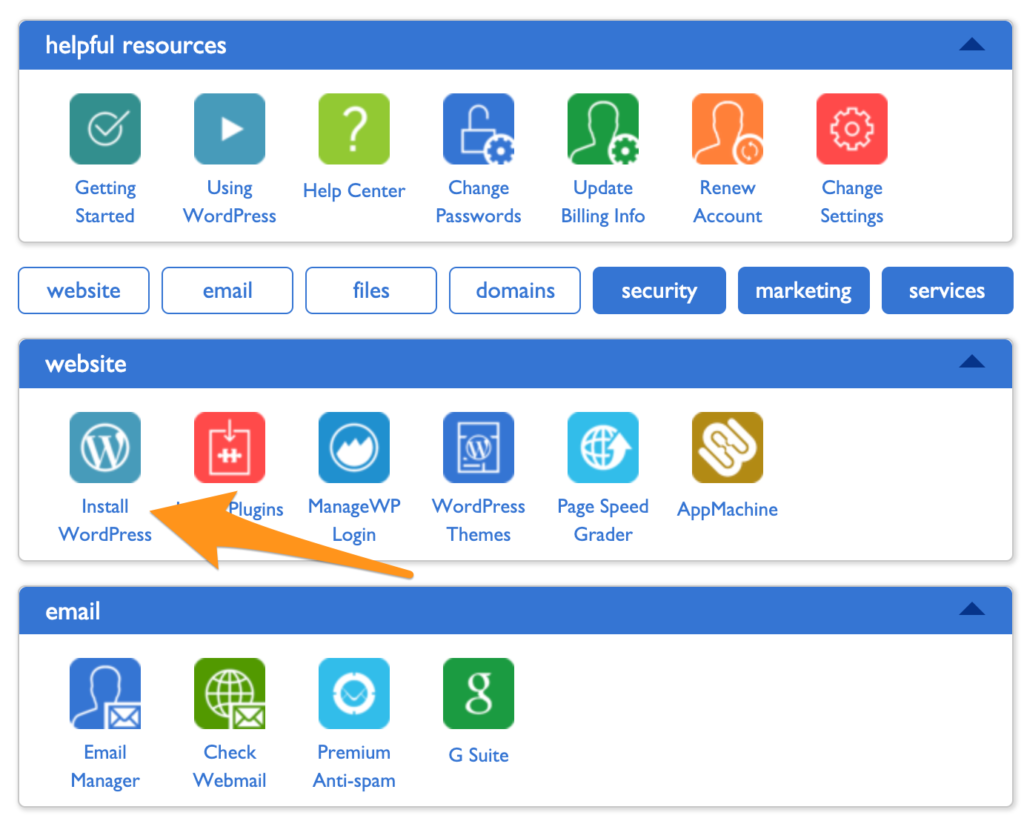
Install WordPress

If you have trouble finding it, contact support at your host and they’ll be able to walk you through it.

Step 6: Point your domain to your host

Let’s do a quick recap.

  • You bought your domain using a domain registrar.
  • You signed up for a hosting plan.
  • You installed WordPress on your host.

Now you’re going to connect all that stuff together by pointing your domain to your host. Then when people go to your domain, they’ll end up on your website.

There are a few technical settings you need to apply. This involves configuring a few nameserver settings on your domain registrar for your domain. Your host will give you the correct settings; you’re looking for their nameserver settings.

If you get stuck, contact your host and they’ll give you all the info you need.

Once you have the nameserver info from your host, go into your domain registrar and configure those settings for the domain that you want to point at your site. Once you’re done, it’ll look something like this:

 

Create a Website Name Servers

Step 7: Install a WordPress theme

Think of WordPress as the guts of your site, it’s all the pumping that makes your site work.

WordPress uses themes to determine how your website looks. This makes it really easy to change how your site looks without having to rebuild your site from scratch. Swap out your old theme for a new one and ta-da! Your design will look completely different.

These days, I purchase all my themes from StudioPress.

Heads up, WP Engine bought StudioPress and now includes all the StudioPress themes in its hosting plans. WP Engine is more expensive but it’s perfect for serious bloggers. It’s a great way to save money on your theme if you are planning on building a large site to begin with. WP Engine is another one of our recommended hosts if you’re looking for the best. The downside is that WP Engine tends to be more expensive than other hosts. It’s probably overkill if you are just starting out, or creating your first website.

Back to themes, are there other options?

You betcha. ThemeForest has a marketplace of WordPress themes. There are literally tens of thousands of themes to pick from. They’re usually in the $30–60 price range. When looking for theme, I rank them by the most popular or the highest rating. Then I pick one I personally like.

After you’ve purchased a theme, go to the WordPress Theme settings and upload your theme. The Theme settings are under Appearance in the WordPress sidebar menu. You’ll have to click through “Add new” and “Upload Theme” in order to see this option to upload:
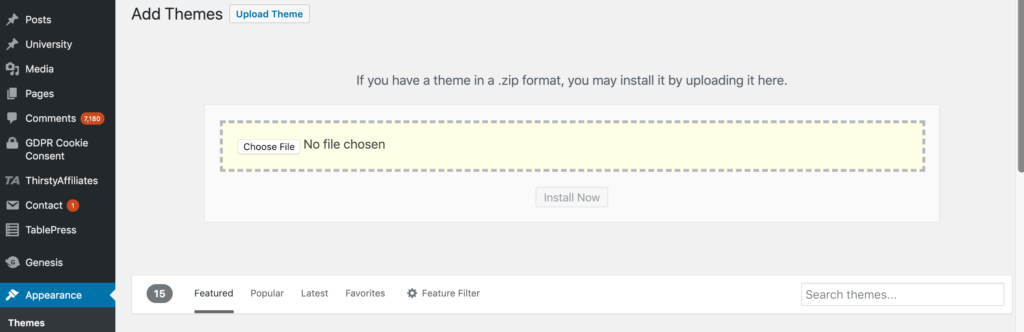
Upload WordPress Theme

Go ahead and upload the .zip file you received when you purchased your theme.

After it’s uploaded, you’ll also have to click “activate” on the theme in WordPress to make it go live.

Step 8: Add content to your website

Now the fun part — it’s time to create the individual pages of your site.

You’ll do this within WordPress.

WordPress has two types of content: pages and posts.

Think of posts as blog posts that are published under a “blog” section of a site. If you’re not planning on having a blog, then you can skip posts entirely.

Pages are the more permanent pages on your website. Like your About or Contact Us pages. When you’re first creating your website, you want to get a batch of pages live so your site feels real.

Every website has a few standard pages you should create:

  • Homepage – Your WordPress theme usually has settings for this page.
  • Contact Page – Create a new page and install a WordPress form plugin so you can add a form to the page.
  • About page – Tell your story and why you’ve started your business.
  • Product or services pages – For the main services or products that you’re offering, it’s a good idea to create a dedicated page for each.
  • Blog – If you’re building a blog, make sure all your posts get listed here.

This list will get you started. You can always add more later.

Step 9: Continue evolving your website

At this point, you have a fully functioning site that looks great.

I’m not going to lie, there’s a lot of extra configuration you can do to your site: you can add WordPress plugins that upgrade your site, build out a blog, add an email list, grow traffic, the list is endless.

You don’t have to do any of this extra stuff — it’s all optional. It depends on your priorities and goals.

A website is an ever evolving thing. The way it looks after you first create it, won’t be how it looks a couple months later. At least that is the case if you are actively working and growing your website.

When you’re ready, these guides will walk you through the extra stuff that’s worth considering:

Our General Take On Building a Website

Don’t get confused by all of the different options for creating a website. For a more in-depth look at how we think about this, check out our preliminary guide on how to create a website.

WordPress is King

In most cases, we highly recommend to build your website with WordPress. It’s an open source platform that allows you to run your website with very little technical expertise.

Some of the biggest websites on the Internet are built on WordPress. TechCrunch, The New Yorker, Variety and MTV News, just to name a few.

It’s also the most popular blogging platform, so there are hundreds of thousands of smaller websites that use WordPress.

WordPress is used by 33.4% of all the websites, and has a content management system market share of 60.3%.

Much of our content is centered around WordPress because we use it for all of our websites outside of Ecommerce.

Here’s the guide on how to create your website on WordPress.

Shopify for Ecommerce

For Ecommerce, we like Shopify — which is an Ecommerce website builder that allows you to get an online store up and running quickly.

The reality is that creating and running an online store can be a huge pain. Shopify takes that pain away. That’s probably why they are growing so quickly, and so many great online stores are popping up on the platform.

Here’s the guide on how to create your website on Shopify.

The Dozens of Other Options

If you’re reading this right now, then you most definitely fall into the category of someone that should be using WordPress or Shopify.

In rare cases, it might make sense to create a website using Squarespace or a similar website builder.

In other (very) rare cases, it might make sense to have a custom built website.

More Guides On Creating and Managing a Website

Below, a master list of all our best resources on creating a website.

For general information:

How to Plan Out Your New Website

How to Buy The RIGHT Domain Name – A Detailed Guide

How to Develop Your First Brand Identity on a Budget

The 5 Best Website Builders

The 5 Best Domain Registrars

10 Trending 2019 Website Color Schemes

9 Places To Get Website Images (Paid and Free)

The Best Website Fonts That Go Together in 2019

13 Website Design Best Practices

7 Reasons Why You Do NOT Need to Hire a Website Designer

The 22 Key Elements of a High Quality Website

How Much Copy Should You Write on Your Homepage?

10 Contact Page Techniques That Make People Contact You

How To Create an About Page That Matters

How to Make a Wix Website in 6 Easy Steps

For useful information on optimization as your site gets up and running:

Website Speed

Website Usability

Website Security

Website Mobile Friendliness

5 Easy Steps to Creating a Sitemap For a Website

Should You Switch Your Site to HTTPS? Pros and Cons

The Top 10 Principles That Boost Your Website Loading Time

More about web hosting:

You need a web hosting provider in order to have a website.

We recommend SiteGround for most people. For advanced WordPress users, with high traffic websites, it could make sense to move to WP Engine at some point.

More about The Best Web Hosting Companies here.

Here are some additional guides to help you learn more about web hosting:

The Best Web Hosting for WordPress

The Best Free Web Hosting

The Best Cheap Web Hosting

The Hidden Costs of Website Hosting

More about analytics and reporting:

An analytics tool is important if you want to know what’s happening on your website. It tells you how much traffic you’re getting, where it’s coming from, and what people do on your site. Google Analytics is the standard. That’s what we use for Quick Sprout.

Read more about why Google Analytics is the best.

Installing Google Analytics is easy. Consuming the reports is a bit more complicated.

Here are some guides to help:

The 2 Website Analytics Tools Pros Actually Use in 2019

Setup Google Analytics in 3 Steps – The Beginner’s Guide

10 Vital Customizations to Make in Google Analytics

A Guide to Google Analytics Add-on for Google Sheets

How to Track Your Leads with UTM Parameters

More about building and optimizing with WordPress:

A WordPress website is basically made from what’s called a WordPress Theme and WordPress Plugins. All of the features of your website will come either from the theme or the plugins you install.

To help you get started, we reviewed all of the best WordPress Plugins across the most popular categories.

Here’s an in-depth review for each category:

Best SEO Plugins for WordPress

Best WordPress Gallery Plugin

Best WordPress Backup Plugin

Best Form Plugin WordPress

Best WordPress Cache Plugin

Best WordPress Security Plugin

Best WordPress Calendar Plugin

Best Google Analytics Plugins for WordPress

Best WordPress Popup Plugin

Best WordPress Directory Plugin

Best WordPress Booking Plugin

Best Membership Plugins for WordPress

Best Social Media WordPress Plugin

Useful information for ecommerce websites:

If the primary purpose of your website is to sell products, you’ll need an ecommerce website. We recommend keeping it simple and going with Shopify.

Read our full review on Shopify to see why.

Check out our review of the Best Ecommerce Platforms, to get a comparison to the other options out there.

Get the step-by-step on how to start an online store.

Our guide on how to create an Ecommerce website.

More useful guides on building an Ecommerce website:

WordPress Ecommerce

How to Transfer Your Website to Shopify

Best Ecommerce WordPress Themes

Best Ecommerce Website Builder

Checkout Process Design

Ecommerce Color Schemes

How to Create a Trust Seal On Checkout Page

Tips on starting a blog:

When you really break it down — most websites are blogs, and blogs are websites. They have become one and the same. The most popular blogging platform is WordPress, and that is also the same platform we use for any other website, blog or otherwise.

If you’re thinking about starting a blog specifically, and that is why you’re trying to figure out how to create a website…we have over 40 guides on blogging.

Here are the blogging guides specific to getting started, and building your blog:

How to Start a Blog

Best Blogging Platforms / Blog Sites

Best WordPress Themes for Blogs

Blog Design

11 Things I Wish I Knew Before I Started My First Blog

The Top 12 Tips for Running a Successful Video Blog

10 Lessons Seth Godin Can Teach You About Blogging

100 Lessons Learned from 10 Years of Blogging

Creating Your Own Website: In Summary

Creating your website might seem overwhelming at first. It really comes down to starting with these simple steps:

  1. Is your primary purpose to sell things on your website? If yes, then focus on Shopify, if no, then focus on WordPress.
  2. Use the guides on Quick Sprout to help you through the process. It’s a learning curve for sure. Taking the time to set up everything correctly will help you grow your business and your traffic much faster later on.
  3. Don’t hesitate to reach out to us directly via email with questions. We’ll help however we can.


from Quick Sprout https://ift.tt/31L2TJ0
via IFTTT

The Best Cheap Web Hosting

Want to jump straight to the answer? The best cheap web hosting provider for most people is definitely DreamHost.

Everyone loves to get a great deal. That’s why it’s worth it to shop around to get the best possible rate for web hosting.

However, finding the cheapest web hosting plans isn’t always easy.

It’s common practice in the web hosting industry for providers to advertise really low introductory rates. But in order to get the lowest possible monthly rate, you’ll have to pay up-front and in-full for at least a year.

Basically, the longer your contract terms are and the more you pay upfront, the cheaper your monthly rates will be. It’s also worth noting that your rates could double or even triple when it comes time to renew your plan. The best price will always be for your first contract.

So you can’t just take the advertised rates at face value. What might sound like affordable web hosting initially, could end up costing you much more than you anticipated.

The word “cheap” doesn’t mean the same thing to everyone. A friend of yours could recommend a hosting plan that’s cheap to them, but way out of your price range.

Plus, the cheapest option isn’t always the best option. Some hosts have low rates but provide terrible service. This will end up costing you more money in the long-term.

That’s what inspired me to write this guide.

I’ve taken all of these factors into consideration to identify the most affordable web hosting plans that are worth using. All of the options in this guide are shared hosting plans, which will always be the most cost-effective way to host your website, regardless of the provider you choose.

Whether you’re looking for month-to-month plans, annual options, or the best possible rate, you’ll be able to find the best web hosting provider for your website below.

Finding the Cheapest Long-Term Hosting Plans

These are the best cheap web hosting companies overall:

  • DreamHost — Starting at $4.95 (month-to-month contract)
  • Hostinger — Starting at $7.99 (month-to-month contract)
  • A2 Hosting — Starting at $9.99 (month-to-month contract)
  • HostGator — Starting at $10.95 (month-to-month contract)
  • SiteGround — Starting at $11.95 (month-to-month contract)
  • iPage — Starting at $2.99 (annual contract)
  • Bluehost — Starting at $4.95 (annual contract)
  • InMotion — Starting at $4.99 (annual contract)

But to get the absolute cheapest monthly rates available, you’ll need to lock in a contract for more than one year. This will cost you more money upfront, but save you in the long run.

Then, the above plans look more like this:

  • Hostinger — $0.99 per month (48 months paid in-full)
  • iPage — $1.99 per month (36 months paid in-full)
  • DreamHost — $2.59 per month (48 months paid in-full)
  • HostGator — $2.75 per month (36 months paid in-full)
  • Bluehost — $2.95 per month (36 months paid in-full)
  • A2 Hosting — $2.96 per month (35 months paid in-full)
  • InMotion — $3.99 per month (24 months paid in-full)

In addition to locking in the lowest available rates, you’re also delaying your renewal upcharges.

If you know that your site will be up and running for at least a few years, a long-term contract will offer the most value. Just make sure you sign up for a plan with a money-back guarantee, so you can opt-out at the beginning if you’re unhappy.

The Best Month-to-Month Hosting Prices

For those of you who don’t want long-term contract commitments, you’ll need to find a web hosting provider that offers month-to-month pricing. These prices will be a bit higher than the cheapest advertised rates, but you won’t be locked in for multiple years.

DreamHost

Starts at $4.95/month
$3.95/month if you pay annually
Recommended by WordPress
4.6/5 rating from Trustpilot
Get up to 47% off

If you’re looking for an affordable web hosting option, DreamHost is a top provider to consider. More than 1.5 million websites worldwide are hosted by DreamHost. They have an outstanding reputation, so don’t assume that their low rates are a reflection of their quality.

DreamHost offers month-to-month web hosting plans starting for less than $5 per month.

  • Shared Starter — $4.95 per month
  • Shared Unlimited — $10.95 per month

There are no setup fees and no strings attached. You can cancel whenever you want without committing to more than one month at a time. These are two of the most straightforward low-cost plans in the industry.

Both plans come with a free website builder, WordPress pre-installed, and a free SSL certificate.

Email comes free with the Shared Unlimited plan and starts at $1.67 per month with the Shared Starter plan.

I like DreamHost because their customer service team is 100% in-house. They don’t outsource agents like other web hosting companies. However, the trade-off is that live chat and email support is only available for 16 hours per day.

With that said, DreamHost has an extensive knowledge base of FAQs and guides making it easy for you to find help on your own.

Not only are you able to sign up month-to-month, but you’ll also be refunded if you’re unhappy. DreamHost has an industry-leading 97-day money-back guarantee. Check out my complete Dreamhost review for more details about them.

Hostinger

Starts at $7.99/month
$5.85/month if you pay annually
Free SSL certificate
30-day money back guarantee
Get up to 90% off

Hostinger isn’t the most well-known name in the hosting industry, but they offer affordable web hosting with month-to-month contracts.

Here is an overview of Hostinger’s monthly rates:

  • Single Shared Hosting — $7.99 per month + $4.99 setup fee
  • Premium Shared Hosting — $11.95 per month + $4.99 setup fee
  • Business Shared Hosting — $15.95 per month + $4.99 setup fee

The biggest difference between the three options is the server resources and the number of websites that can be hosted. The available disk space is 10 GB, 20 GB, or 30 GB, depending on the plan you choose.

The Single Shared Hosting plan has 100 GB of bandwidth and it’s good for one website. The Premium and Business plans have unlimited bandwidth and up to 100 sites can be hosted.

All three plans have a 99.9% uptime guarantee, 24/7/365 customer support, and an easy-to-use website builder.

I like Hostinger because their service is reliable and they don’t force you to commit long-term. However, the month-to-month plans do not come with lots of freebies and extras. These are some of the add-ons that you’ll want to consider:

  • Daily backups (free with the Business Shared plan)
  • Cloudflare CDN
  • SEO toolkit
  • Priority support

At a minimum, I’d recommend the daily backups. The Cloudflare CDN is a good value as well.

A2 Hosting

Starts at $9.99/month
$7.99/month if you pay annually
Free domain and SSL certificate
30-day money back guarantee
Get up to 51% off

A2 Hosting is known as one of the fastest web hosting providers in the industry. So the fact that you can get affordable month-to-month pricing from such a reputable provider is a great option.

The monthly rates offered by A2 Hosting are a bit different compared to the providers that we’ve seen so far.

A2 gives a discounted rate off of the first month of the month-to-month contract. The renewal rates for each subsequent month are higher, but still affordable enough to fall in the cheap web hosting category. Let’s take a closer look at the pricing for these plans.

  • Lite — $3.92 for the first month, then $9.99 per month
  • Swift — $4.90 for the first month, then $12.99 per month
  • Turbo — $9.31 for the first month, then $25.99 per month

If you’re in the market for cheap web hosting, then you probably won’t consider the turbo plan, since it renews for $26 per month. Although this plan will give you the fastest speeds.

A2 Hosting offers a free SSL certificate with all three plans. However, you’ll need to pay an extra $4 per month if you want a dedicated IP. Site builders, backups, spam protection, and Cloudflare cost extra as well.

Another reason why I recommend A2 Hosting is because they provide cPanel control panel. This feature will make it much easier for you to manage your hosting experience.

HostGator

Starts at $10.95/month
$8.95/month if you pay annually
Free domain and SSL certificate
45-day money back guarantee
Get up to 61% off

HostGator’s entry-level rates are a bit higher than some of the other month-to-month plans that we’ve reviewed, but they are still one of the best cheap web hosting providers in the industry.

In terms of the value, one of the reasons why I like HostGator so much is because the month-to-month rates are exactly the same as the 3-month contracts and 6-month contracts.

So for those of you who don’t want to commit, even for a few months, there’s no reason to.

  • Hatching Plan — $10.95 per month
  • Baby Plan — $11.95 per month
  • Business Plan — $16.95 per month

At first glance, the $10.95 starting point may seem high, but it’s really not the case.

Are there cheaper options available? Yes. But when you factor in the setup fees and renewal rates of those other providers beyond the first month, $10.95 is still very affordable.

The fact that there is only a $1 difference between the Hatchling and Baby plans is another bonus. In my mind, this pricing structure makes it a no-brainer for you to sign up for the Baby plan.

Even if you only have one domain right now, being able to add more down the road without switching plans is worth the extra $1 per month.

Additional features like SiteLock monitoring, professional email, SEO tools, and daily backups will cost you extra.

HostGator has 24/7/365 support via phone, email, and live chat. They offer instant account activation without any setup costs as well as a 45-day money-back guarantee.

SiteGround

Starts at $11.95/month
$3.95/month if you pay annually
Recommended by WordPress
30 day money back guarantee
Get up to 67% off

SiteGround is another top name in the web hosting industry. They have a great reputation and host websites all over the world.

Their month-to-month pricing is a bit unique. SiteGround offers a low rate for the first month, advertised as a trial. Then the rate increases for each subsequent month.

All trials have a one-time setup fee, which actually makes the trial more expensive than the other months. This is a bit unusual, but it shouldn’t be a reason to turn you away from using SiteGround’s month-to-month plans.

Here’s a deeper breakdown of their pricing:

  • Startup — $3.95 + $14.95 setup fee trial, then $11.95 per month
  • GrowBig — $5.95 + $24.95 setup fee trial, then $19.95 per month
  • GoGeek — $11.95 + $24.95 setup fee trial, then $34.95 per month

Truthfully, the GoGeek plan price point probably falls outside the range of what most people would consider “cheap” for web hosting. But with enough resources to accommodate roughly 100,000 monthly visits, it’s a great option for a larger website that needs affordable web hosting.

For those of you who are starting a new website, you should be fine with the Startup plan.

The Best Annual Hosting Prices

If you’re willing to commit to a web hosting plan for at least one year, you’ll get a cheaper monthly rate if you pay for 12 months upfront. These plans will take more out of your pocket initially but save you money in the long-run.

iPage

$2.99/month paid annually
Free domain and SSL certificate
FREE drag and drop site builder
30-day money back guarantee
Get up to 75% off

iPage has been around for more than 20 years. They are known for website builders and affordable web hosting. More than one million websites use iPage for hosting services.

I recommend iPage because their annual pricing rates are cheap and straightforward.

As we’ve already seen, other hosting providers offer multiple plans at varying price points. The pricing depends on features and resources.

But iPage pricing is based solely on your term length. Then you can customize your plan with additional products.

The base price for an annual web hosting plan is $2.99 per month, which translates to an upfront total of $35.88 for the year.

Here are some of the additional features that you can add to customize your plan:

  • Daily backups — $14.99 per year
  • Website security — $19.95 per year
  • Pro website builder — $131.88 per year
  • SiteLock — $23.88 per year
  • Domain privacy — $9.99 per year
  • WordPress optimization — $36.00 per year
  • G Suite business — $36.00 per year

Most of you won’t need all of these. But you’ll probably want to add-on the domain privacy and added security at a minimum. That would bring your upfront annual total to $65.82.

iPage offers a free SSL certificate and a 30-day money-back guarantee for its annual plans as well.

Overall, iPage has some of the most affordable annual web hosting plans in the industry. Read my full iPage review for more on them.

SiteGround

$3.95/month paid annually
Free SSL, email, CDN, & backups
Recommended by WordPress
30 day money back guarantee
Get up to 67% off

We already reviewed SiteGround’s month-to-month pricing. But their annual rates are appealing enough for me to mention them again here.

In most cases, web hosting providers give you better discounts for longer contract terms. But SiteGround offers the same monthly rate for 12-month, 24-month, and 36-month contracts.

You’ll still have to pay upfront, but you don’t need to commit for three years to get the best rate.

  • Startup — $3.95 per month ($47.40 per year)
  • GrowBig — $5.95 per month ($71.40 per year)
  • GoGeek — $11.95 per month ($143 per year)

So if you know that you want to use SiteGround for at least one year, these annual rates are much more affordable then the month-to-month options that we discussed earlier.

Bluehost

$4.95/month paid annually
Free domain and SSL certificate
Recommended by WordPress
30-day money back guarantee
Get up to 63% off

More than 2 million websites across the globe trust Bluehost for web hosting. Since launching back in 2003, Bluehost has become one of the best and most well-known hosting providers in the industry.

Bluehost plans are pretty unbeatable when you compare the price to the performance and quality of service that you’re getting in return.

Let’s take a closer look at the annual rates for Bluehost shared hosting plans.

  • Basic — $4.95 per month ($59.40 per year)
  • Plus — $7.45 per month ($89.40 per year)
  • Choice Plus — $7.45 per month ($89.40 per year)
  • Pro — $18.95 per month ($227.40 per year)

In terms of affordable web hosting, most of you probably won’t need or want the Pro plan.

But the Basic plan is a great option for a new or small website.

If you have the budget to spend a little bit more, the Plus and Choice Plus plans are offered at the same price for the first year. So I’d recommend Choice Plus, as it comes with extra benefits like site backups and domain privacy.

Just be aware that all of these plans renew at higher rates after the first year. The renewal rate for Choice Plus is $16.99 per month ($203.88 per year) compared to $12.99 per month ($155.88 per year) for the Plus plan.

For an extra $4 per month, I’d still lean toward Choice Plus as the best value.

All plans come with a free SSL certificate and unmetered bandwidth. The basic plan has 50 GB of storage, and the other three have unlimited SSD storage.

Bluehost also offers $100 in advertising credits for Microsoft Advertising as well as $100 in credits for Google Ads. The free advertising can balance out some of your hosting costs. Read my full Bluehost review for more info about them.

InMotion

$4.99/month paid annually
Free domain and SSL certificate
Free and unlimited email
90-day money back guarantee
Get up to 57% off

The web hosting plans offered by InMotion are great for small business owners. So if you’re looking foe cheap small business web hosting, these are the plans that you should consider:

  • Launch — $4.99 per month ($59.88 per year)
  • Power — $6.99 per month ($83.88 per year)
  • Pro —  $13.99 per month ($167.88 per year)

Again, you need to pay upfront to lock in these annual rates.

Most entry-level plans limit you to host just one website. But the Launch plan from InMotion allows you to host two sites.

All plans come with unlimited disk space, unlimited bandwidth, unlimited email, security suite, marketing tools, and a free SSL certificate.

InMotion has a free one-click installer for more than 400 apps as well as one-click data backups and restores.

Another reason why I recommend InMotion is because of their 90-day money-back guarantee. This assurance should make you feel more comfortable about paying for a year in-full when you sign up.

While InMotion does have some add-ons like a dedicated IP and backup management, the plans seem to have more basic features included then some of the other providers out there.  Learn more about them by reading my in depth InMotion hosting review.

Calculating Your Actual Hosting Costs

Web hosting costs aren’t always transparent. You can’t just look at the advertised rate on a website and assume that’s what you’re going to pay.

No matter which hosting provider you use, there are other costs that you need to be aware of. In addition to your base rate, these are the factors that contribute to your actual hosting costs.

Intro pricing and renewal rates

Whether you commit to one month, one year, or four years, your first contract will always be your best offer. But you need to understand what you’re going to be paying when your contract expires.

Let’s look at an example, using iPage, which has the lowest annual rates on our list.

The introductory pricing rate for a 12-month contract, paid in-full, is $2.99 per month. So your base hosting cost is $35.88 for the first year. However, iPage annual plans renew at $9.99 per month, so you’ll be paying a $119.88 base cost for each subsequent year.

Hosting providers are always changing their introductory offers. It’s common to see prices slashed around the holidays, like Black Friday or Cyber Monday. But with that said, I wouldn’t recommend waiting until you see an offer like that to start your website.

Contract length

If you’re short on cash and don’t want to commit, then month-to-month hosting plans might be more appealing to you. But shorter contract terms translate to higher monthly rates.

For example, HostGator’s entry-level pricing starts at $10.95 per month with no long-term commitments. This will cost you $131.40 over the course of the year, which is very affordable.

However, if you lock in that same exact plan for 36 months and pay upfront, the monthly rate drops to $2.75. So you’ll get three years of web hosting for $99 total. That’s less than the cost of one year at the month-to-month rate!

You’ll have to weigh the pros and cons here. The downside of locking in a long-term contract is that you lose the flexibility to change your plan if you’re unhappy or outgrow your resources.

With that said, I’d still lean toward locking in the best long-term deal you can find. You can always continue using your same hosting plan even if you change domain names.

Add-ons and freebies

Most web hosting providers will offer extra features built-in to the base cost of your web hosting plan. Some providers offer more than others. Although the price of a plan typically reflects the number of add-ons you’re getting.

In addition to web hosting, common add-ons, freebies, and extras include:

  • SSL certificate
  • Domain registration
  • Setup costs
  • Security
  • Daily backups
  • cPanel
  • WordPress integration
  • Advertising credits
  • Email
  • Marketing tools
  • SEO tools
  • MySQL databases
  • Domain privacy
  • Website builders

The list goes on and on. It’s important to take all of this into consideration.

One plan may look more appealing at face value, but you’ll have to pay extra for basic features. Whereas another provider may have higher base prices, but deliver more in terms of extras and freebies.

Upgrades

As your website scales, you’ll eventually need to look beyond the cheapest web hosting option. At some point, your traffic and website will exceed the limits of an entry-level shared plan.

The next logical step is to upgrade to VPS hosting or a cloud hosting plan.

While this may not happen for several years, you should take a look to see what types of upgrades are offered by various web hosts. Ideally, you’ll want to choose a provider that will make it easy for you to upgrade to another type of web hosting.

So review those upgraded plans so you can budget and calculate your hosting costs accordingly for the long term.

Conclusion

You don’t need to spend a ton of money on web hosting, especially if you have a new or small website. But finding the best cheap web hosting provider can be difficult because the rates depend on so many different factors.

I do not recommend choosing a web host based solely on price. You also need to factor in the quality of the service that you’re getting.

If your site crashes or goes down, you want to make sure that your hosting provider is available to fix the situation immediately.

The first thing you need to do is decide if you want a month-to-month plan, annual plan, or long term contract. Then you can evaluate the host based on features, resources, and customer service.

So if you’re in the market for cheap web hosting, these are the providers you should consider.

In addition to using this guide to find the best plan for your needs, you can also use it to calculate your actual hosting costs.

Here’s a recap of the most affordable web hosting plans that I would recommend:

  • DreamHost — Starting at $4.95 (month-to-month contract)
  • Hostinger — Starting at $7.99 (month-to-month contract)
  • A2 Hosting — Starting at $9.99 (month-to-month contract)
  • HostGator — Starting at $10.95 (month-to-month contract)
  • SiteGround — Starting at $11.95 (month-to-month contract)
  • iPage — Starting at $2.99 (annual contract)
  • Bluehost — Starting at $4.95 (annual contract)
  • InMotion — Starting at $4.99 (annual contract)


from Quick Sprout https://ift.tt/34driIF
via IFTTT

Friday, May 1, 2020

The Best ERP Software

Enterprise resource planning (ERP) software was initially created for large organizations to manage their entire operation within a single system. It includes features like CRM, human resources, accounting, supply chain management, and more.

But today, with the deployment of cloud-based software and SaaS, ERP solutions can be used by businesses of all different shapes and sizes.

While the majority of ERP software is adopted by larger enterprises, SMEs and even some smaller businesses have begun using enterprise resource planning software over the last few years.

The purpose of ERP software is to simplify your operations. Rather than having a different piece of software for every department and component of your business, ERP software is an all-in-one solution.

The Top 6 Best ERP Software For Your Business

After conducting extensive research, I’ve been able to narrow down the top six solutions in this category. Continue reading below for an in-depth review of each ERP software on our list.

#1 – Oracle Netsuite — Best Overall ERP Software

• Trusted by 20,000+ businesses
• Fully customizable
• Designed to support growth
• Perfect for any industry
• Request free product tour

Oracle Netsuite is our top recommendation for ERP software. Compared to other options on the market today, Oracle Netsuite edges out the competition in nearly every category.

From startups to large-scale enterprises, more than 20,000 businesses across the globe trust this solution for enterprise resource planning.

Oracle Netsuite is fully customizable and designed to support growth. It’s easy to add functionality and resources as your business scales.

This cloud-based ERP can accommodate the needs of all different business types. Here are just a handful of industries that use Oracle Netsuite:

  • Marketing and advertising
  • Agriculture
  • Government
  • Professional services
  • Restaurant and hospitality
  • Construction
  • Ecommerce
  • Engineering
  • Distribution
  • Biotech and pharmaceuticals

The list goes on and on. You get the idea; no matter what type of business you have, Oracle Netsuite can accommodate your needs.

Some of the top ERP features of this solution include order management, financial planning, financial management, and production management. The software can even accommodate supply chain management as well as warehouse and fulfillment needs.

You’ll be able to manage your end-to-end inventory and all of your logistics in real-time. The software helps maximize the efficiency of these processes.

Oracle Netsuite has built-in business intelligence. So you’ll be able to access visual analytics from all of your data. These reports allow you to make actionable business decisions.

Due to the customizability of this software, the pricing is not available online. This is common in the ERP software category. You’ll need to talk to the Oracle Netsuite sales team to discuss your needs and get a quote. Request a free product tour for more information.

#2 – SAP Business One — Best For Small Business

• Made for small businesses
• Mobile access
• 500+ add-ons
• Industry-specific solutions
• Get a free estimate

As I said before, ERP software has historically been used by enterprises (hence the name). But today, even small businesses can take advantage of enterprise resource planning software.

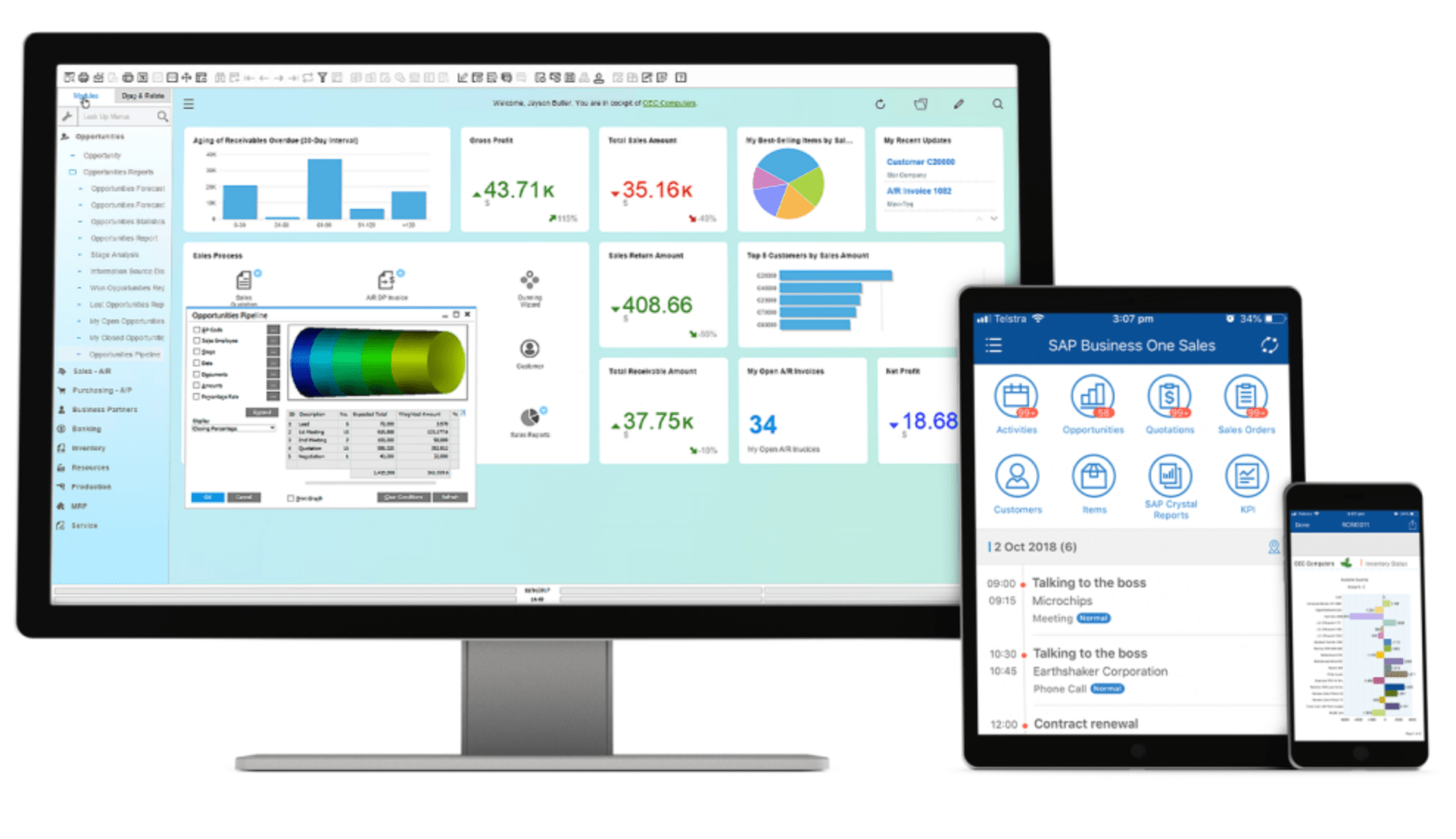
SAP Business One is designed specifically for smaller businesses.

If your company has outgrown your exiting tools or needs to consolidate your software to a single platform, SAP Business One has exactly what you’re looking for. This software includes resources for sales, inventory management, CRM, financials, analytics, reporting, and more.

SAP Business One offers industry-specific solutions as well. Choose from 500+ add-ons to customize your software based on your business type or industry needs.

Another top benefit of SAP Business One is its intuitive mobile access. You and your team can access the software from anywhere using the iOS and Android mobile apps.

No matter where you are, you’ll always be able to check inventory, manage service tickets, and view real-time reports on the go. You can even set up alerts and complete approvals directly from your mobile device.

Like most ERP software, pricing for SAP Business One is not available online.

The initial setup is a bit of a hassle as well, which is the biggest drawback of this solution. After answering a somewhat extensive questionnaire, you’ll be contacted within 24 hours to discuss your company’s requirements in greater depth before getting an estimate. In many cases, you won’t be able to purchase the software directly from SAP; you’ll have to go through one of their partners or resellers.

At the end of the day, this is still a top choice for small businesses. Larger corporations might run into some limitations at scale.

#3 – Sage 300 — Best For Medium Sized Businesses

• Cloud-based ERP software
• Great for international ecommerce
• Supports multiple currencies
• Automate vendor processes
• Get a free demo

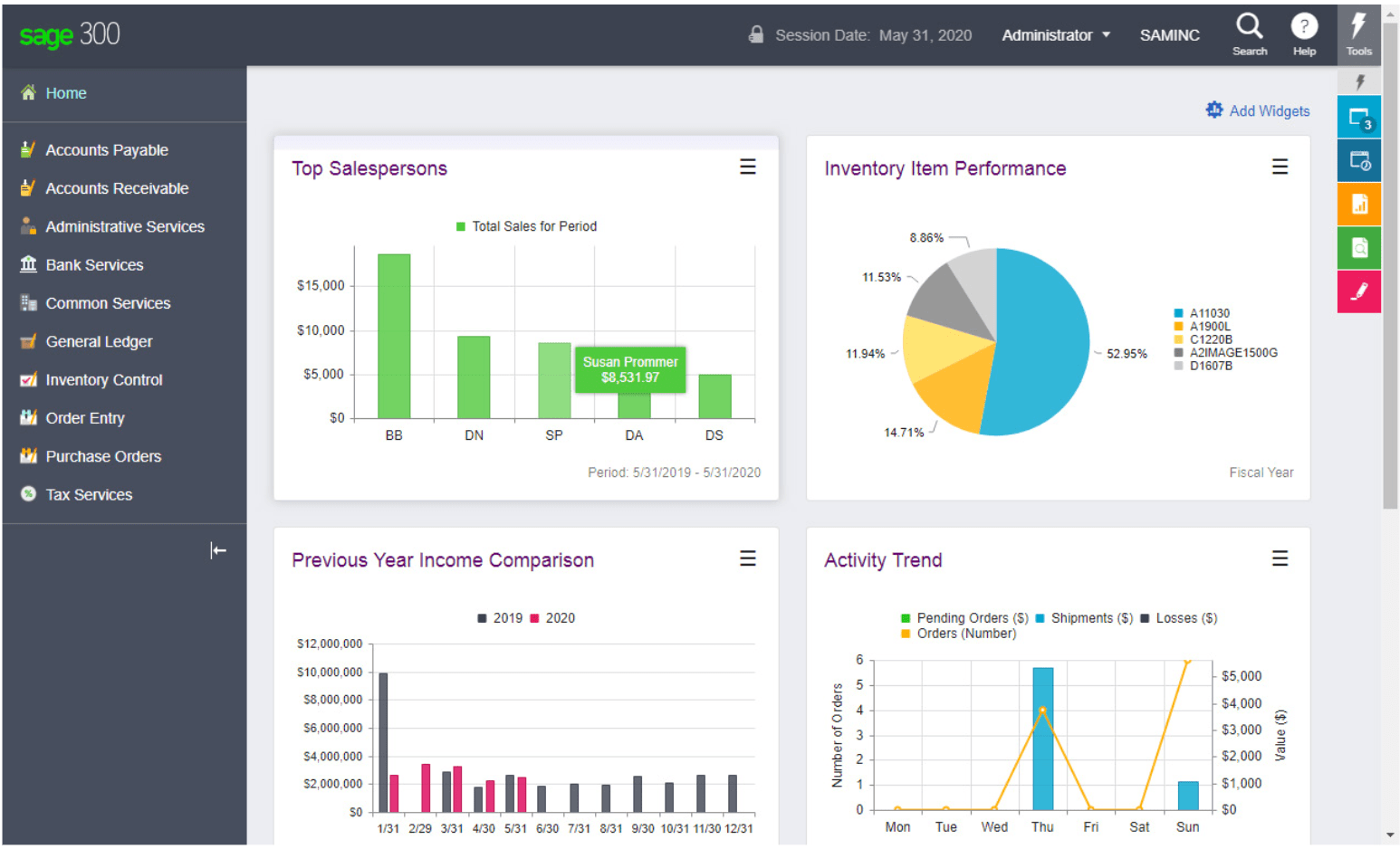
Sage 300 is one of three different ERP software solutions offered by Sage. This solution is designed for mid-market companies.

From managing finances to operations and inventory, Sage 300 has it all. This cloud-based software is designed to help improve the total visibility of your company while maximizing ROI.

Sage 300 simplifies your financials. It’s a great choice for businesses that are managing multiple currencies. You can even use it for multiple businesses if you have subsidiary companies or franchises.

Getting Sage 300 for ERP means that you’ll also have access to a wide range of features in Sage’s extensive product suite. You’ll benefit from features like Sage CRM, Sage Inventory Advisor, and Sage Payment Solutions.

Sage 300 offers intelligent enterprise resource planning for international ecommerce operations. You’ll get real-time analytics as well as the ability to track and process orders from anywhere.

Another top feature of Sage 300 is the ability to manage vendor relationships. You can automate your purchasing process, orders, invoices, receipts, and returns. This will save you lots of time and resources whenever you’re ordering inventory or other materials.

If Sage 300 is too advanced and feature-rich for you, consider Sage 100 as an alternative. It’s still a good ERP software, but not made for international operations or multiple businesses. Sage 100 is more like an advanced accounting software with CRM and other ERP features.

For those of you who want more than the features available in Sage 300, you can upgrade to Sage Business Cloud X3. This is the top of the line ERP solution from Sage. It has a greater focus on supply chain management and sales, designed for larger enterprises.

While Sage Business Cloud X3 is great, it’s probably overkill for medium-sized businesses. But it’s nice knowing you can upgrade at a later time if your company grows.

The majority of you will benefit the most from Sage 300. Contact sales to request a free demo.

#4 – Syspro — Best For Manufacturers and Distributors

• Award winning ERP software
• Industry specific solutions
• 40+ years of experience
• Trusted by 15,000+ businesses
• Get a free demo

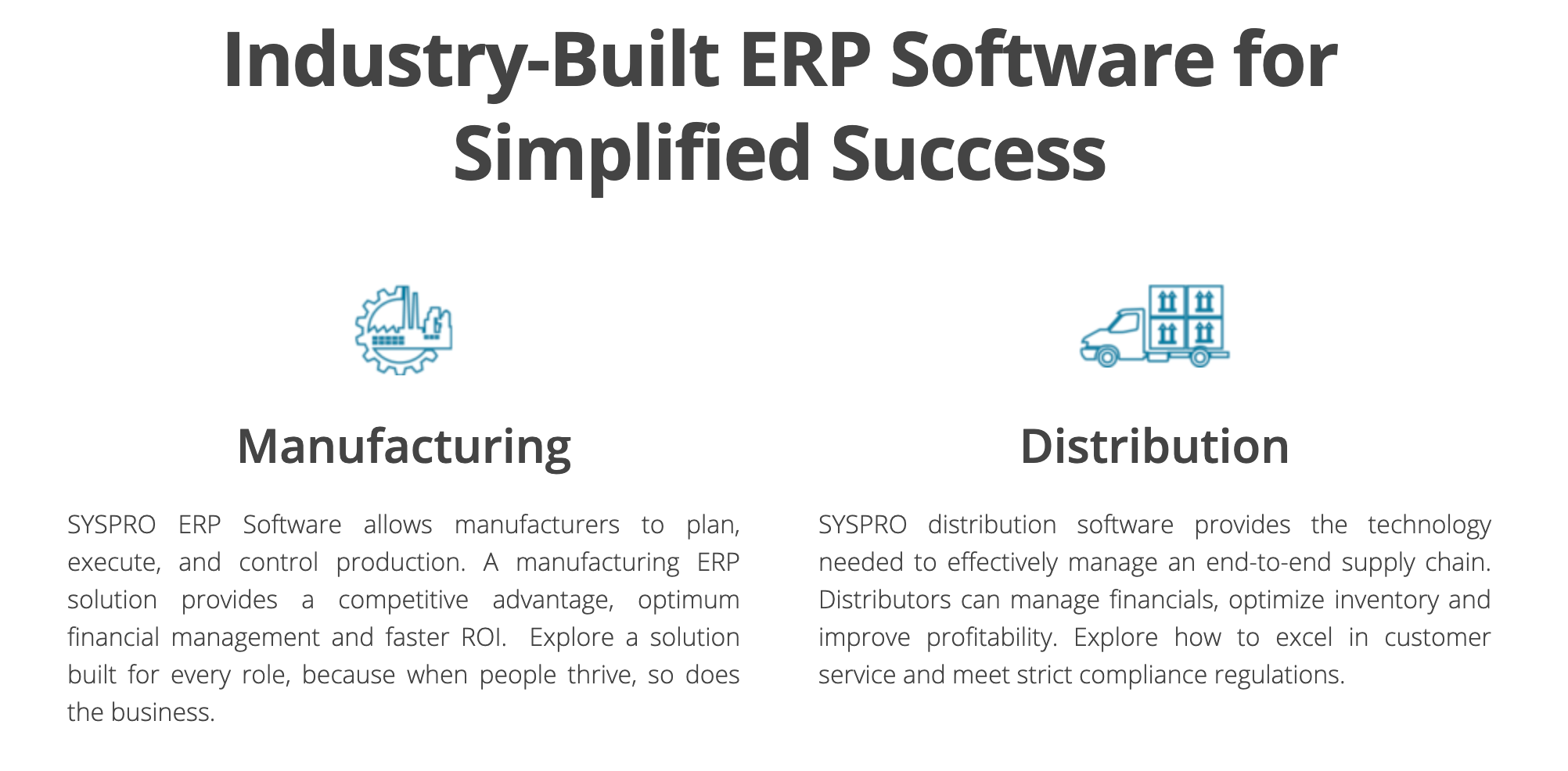
Syspro has ERP solutions for small businesses, mid-sized organizations, and enterprises. But with that said, Syspro is not for everyone. This ERP software is designed specifically for manufacturing and distribution.

With more than 40 years of experience in this industry, Syspro knows what it takes to have success in these spaces.

Syspro ERP is built with industry-specific functionality based on the business requirements for manufacturers and distributors. Common industries within these two categories using Syspro include:

  • Auto parts and accessories
  • Food and beverage
  • Rubber and plastics
  • Industrial equipment and machinery
  • Packaging
  • Fabricated metals
  • Electronics

This award-winning ERP software is used by more than 15,000 businesses throughout 60+ countries.

Syspro ERP will improve your supply chain management and operational inefficiencies. You’ll benefit from actionable insights and reporting to make better business decisions.

In addition to customizing your software, Syspro will also let you fully customize your workspace based on roles and needs. So you and your team won’t feel overwhelmed or bombarded with irrelevant information or screens that you’re not using on a daily basis.

As your business grows, Syspro has the flexibility and power to scale with you.

If your company is involved with manufacturing or distribution, Syspro ERP will be your best option. Unfortunately, this software won’t support other business types. For example, if you’re in retail, professional services, or ecommerce, you’ll need to look elsewhere.

Contact Syspro to request a free demo.

#5 – Acumatica — Best ERP Software For SMEs

• Award winning ERP software
• Industry specific solutions
• Add users for free
• Supports growing businesses
• Get a free custom demo

Acumatica was founded in 2008, which makes this company newer compared to some of the other options on our list. Acumatica is small, but it’s growing rapidly. To date, they have 6,000+ customers and six offices across the globe.

I like Acumatica because they offer industry-specific ERP solutions. So no matter what type of business you have, you know that you’re not getting a cookie-cutter cutter software.

Here’s a quick list of the ERP software editions provided by Acumatica:

  • General Business Edition
  • Distribution Edition
  • Manufacturing Edition
  • Construction Edition
  • Commerce Edition
  • Field Service Edition

If you have a small to mid-sized enterprise in one of these categories, Acumatica will be a top choice for you to consider.

Acumatica ERP is extremely versatile. No matter what type of needs your business has, you can get an all-in-one solution from this service provider.

This award-winning cloud-based ERP software supports growth as well. You can easily add functionality and capabilities as your business scales. Acumatica also lets you add extra users without having to pay for additional licenses.

Acumatica has a free product tour available on its website. If you’re interested in learning more, you can request a custom demonstration and free demo with no obligation.

#6 – Microsoft Dynamics 365 — Best For Bundle Licenses

• Transparent pricing
• Discounts for additional licenses
• Apps for specific categories
• Flexible use cases
• Get up to 6 months free

Like most Microsoft products, Microsoft Dynamics 365 is powerful, flexible, and trustworthy. It’s used by some of the world’s biggest companies, like HP, Coca Cola, Lowe’s, Delta, BMW, Adobe, UPS, and more.

But with that said, Microsoft Dynamics 365 is an ideal ERP solution for smaller businesses as well.

It’s a bit different compared to some of the other options on our list. Dynamics 365 is not really a single product. Microsoft offers multiple product bundles based on your needs. The categories include:

  • Marketing
  • Sales
  • Customer Service
  • Operations
  • Field Service
  • Finance
  • Commerce
  • Human Resources

Each one comes with different apps as a product suite. For example, Operations comes with apps for supply chain management, project service automation, and business central.

Unlike other ERP solutions, Microsoft is fully transparent about its prices and lists all of the prices on their website. It’s a little complicated since each category has multiple prices and individual prices for each app within that category. You’ll get discounted rates if you already have qualifying Dynamics 365 apps.

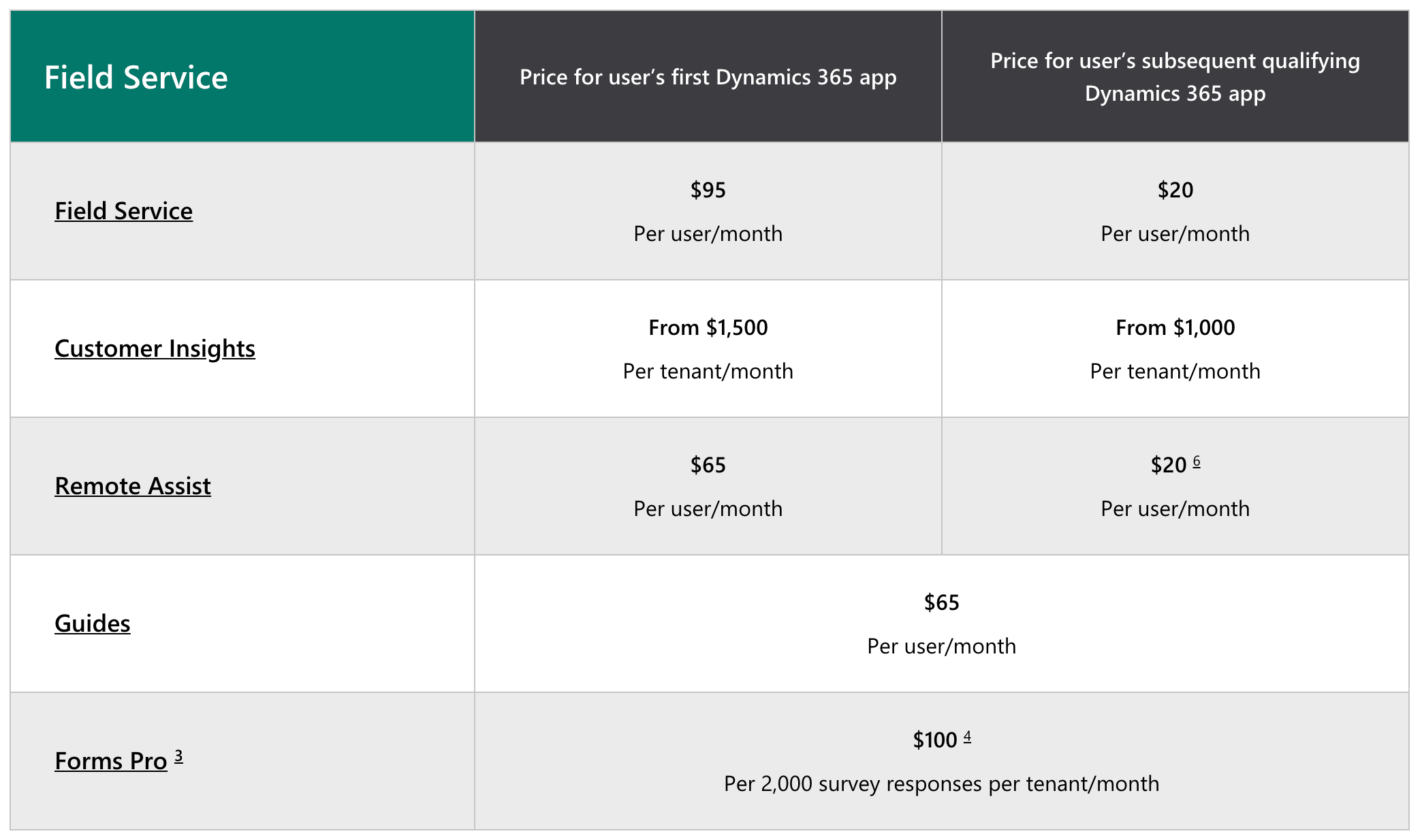
For example, here’s a look at the Microsoft Dynamics 365 Field Service pricing, so you can see what I’m referring to.

As you can see, there is a significant difference in pricing for your first Dynamics 365 app compared to subsequent apps.

With that said, there are some contingencies that you need to keep an eye on. Most packages require a minimum number of licenses to purchase, which is usually 10 or 20.

While the licensing guide and requirements are bit complex to navigate and understand, this option is the best solution for businesses that want to buy in bulk. You’ll also have the ability to pick and choose which specific products you’re looking for while benefiting from discounts on additional licenses.

For a limited time, get up to six months of Dynamics 365 for free.

How to Find the Best ERP Software For Your Business

With so many different ERP solutions on the market, how can you know which one is the best for your business?

I’ll explain the methodology that I used to pick the winners on our list. In most cases, there is no “best for everyone” ERP software. When you’re evaluating different software, you can determine what’s best for you based on the following factors:

Business Size

The size of your business will be the first way to narrow down your options. While the name “ERP” implies enterprise, not every solution is made for large enterprises.

For example, SAP Business One is designed specifically for small businesses. Sage 300 is a top choice for growing mid-market companies, and Acumatica is geared toward SMEs.

So if you have a large-scale enterprise, you wouldn’t consider any of those options. You’d be better off with something like Oracle Netsuite or Microsoft Dynamics 365.

Industry

In addition to the size of your business, some ERP software is made for specific industries.

Syspro is a perfect example of this. It’s made for manufacturers and distributors; that’s it. You can even get a more specialized solution based on your industry within those two categories, like industrial equipment or electronics.

Sage 300 is a great option for international ecommerce businesses. Oracle Netsuite (our top overall recommendation) supports the widest range of business types and industries.

Features

The purpose of ERP software is to be an all-in-one solution for your business needs. But with that said, not all of the feature sets from software to software will be identical.

It’s important to understand what your company needs the most and target an ERP solution that offers those features out of the box.

Common ERP software features include sales tools, CRM, accounting tools, and human resources. But some of you might need features for things like supply chain management, operational management, and end-to-end inventory logistics.

Most ERP software is customized to meet your needs. So it’s easy for the service provider to add what you’re looking for—assuming they have those features to offer.

Setup

Nearly every ERP software requires you to get a custom quote before you get started. This adds an extra step to the setup process. You’ll likely want to get a quote and demo from multiple providers on your shortlist, just to see what options you have.

But once you decide on a solution, you want to make sure that the initial deployment is as easy as possible. Some software must be purchased from a third-party partner, which can be a pain. With that said, those partners usually do a better job of guiding you through the setup process.

Since most ERP software today is cloud-based, you won’t have to worry about installing anything locally on your servers, computers, or other devices. But that’s not the case with every option.

Conclusion

ERP software can simplify your operational efficiencies by providing an all-in-one resource for all of your business processes.

Oracle Netsuite is our top overall recommendation in this category.

But with that said, it’s not for everyone. Small businesses should lean toward SAP Business One. Mid-market companies and SMEs would be better off Sage 300 or Acumatica. Syspro is the best ERP software for manufacturing and distribution. For product bundles and discounts on bulk licenses, turn to Microsoft Dynamics 365.

Regardless of your business size, industry, or enterprise resource planning needs, you can find the best ERP software for your business using this guide.


from Quick Sprout https://ift.tt/2YqT4SC
via IFTTT