Monday, June 1, 2020

Best Video Conferencing Services

Want to jump straight to the answer? The best video conferencing service for most people is definitely RingCentral or GoToMeeting.

More than ever today, I consider a great video conferencing service to be critical for any business. Whether you have remote employees, clients, prospects, or team members across multiple locations, you need video conferencing software that you can depend on.

Tools like Skype or Facetime aren’t robust enough for companies. They lag too often, can’t handle groups well, and are a pain when setting up meetings.

If you’re ready to take your conference calls to the next level with video, you need to read this guide.

I’ve already done all the research and heavy-lifting to help you choose the best video conferencing service for your business. Regardless of your company size, industry, or conferencing needs, there’s definitely an option for you below.

The 8 Best Video Conferencing Services

Of the dozens of options available, there are really only eight solutions I would recommend to a business owner. In no particular order, those are:

  • RingCentral
  • GoToMeeting
  • ClickMeeting
  • Zoho Meeting
  • Zoom
  • Microsoft Teams
  • Join.me
  • Webex

As I said, these video conferencing services are in no particular order and all have their pros and cons. Use the in-depth reviews below to compare them.

RingCentral

Free up to 100 participants
Video, screen share, & messaging
VoIP phone service plans
Small to enterprise solutions
Get Started for Free

RingCentral is more than just a video conferencing platform. It’s also a VoIP business phone service.

With RingCentral, you can ditch your traditional business phone plan for a truly modern solution. If you have the phone plan, you’ll get video conferencing features as an added bonus.

But you can always purchase RingCentral Meetings as a standalone product. For the purpose of this review, those are the plans that we’ll focus on.

Free — $0 per month

  • Up to 100 participants
  • Unlimited one on one meetings
  • 40-minute limit on group meetings

Essentials — $14.99 per month per user

  • Up to 100 participants
  • Unlimited group meetings
  • 24/7 phone support
  • 1,000 call minutes per license

Advanced — $19.99 per month per user

  • Up to 100 participants
  • 2,500 call minutes
  • Real-time usage dashboard
  • SLA available

The free plan is actually pretty decent if you compare it to others on the list. While you’re capped at 40 minutes per meeting, you can still have up to 100 participants.

At the same time, the paid plans are also limited to just 100 participants, which is low compared to the competition. However, you can add-on larger meeting options to your plan for an upcharge.

RingCentral also has great enterprise solutions. You’ll need to contact their sales team to get a custom quote. But you can save some money by bundling RingCentral Meetings with a VoIP business phone.


GoToMeeting

Free 14-day trial
HD video conferencing
No time limits for meetings
Mobile app and Slack integration
Get Started for Free

GoToMeeting is a top choice for video conferencing and conference room capabilities. The platform makes it easy for you to turn any video conference into a highly collaborative workspace.

This is one of the top video conferencing solutions for accommodating both remote workers and clients alike.

Another top benefit of GoToMeeting is its ability to integrate with the systems your business is currently using. It’s used by sales managers, business owners, and IT teams as well.

GoToMeeting also offers an all-in-one hardware and software kit for those of you who want to transform your physical conference room into a digital one. This hardware is more advanced than the built-in cameras, microphones, and speakers on your current devices.

Some other top features and benefits of using GoToMeeting for video conferencing include:

  • Cloud collaboration
  • Automatic bandwidth adjustments
  • Available on Mac, PC, iOS, and Android
  • Single-click start and join sessions
  • Multi-channel support
  • Integrated scheduling

Unlike the other platforms that we’ve reviewed so far, GoToMeeting has just two plans for you to choose from:

  • Professional — $14 per month
  • Business — $19 per month

The plans are very similar. GoToMeeting offers unlimited meetings and unlimited meeting durations with both options. You’ll also benefit from things like Salesforce integration, Slack meeting launcher, and an admin center with each.

The biggest difference between Professional and Business is that they can host up to 150 and 250 participants, respectively.

In addition to more participants, the Business plan gives you access to transcripts, keyboard and mouse sharing, unlimited cloud storage, and mobile cloud recording.

I think it’s a no-brainer to sign up for the Business option instead of Professional. The added benefits are worth the extra $5 per month.

GoToMeeting does offer enterprise-grade plans for up to 3,000 participants. But those prices aren’t available online. You’ll need to speak to a sales rep for a custom quote.

Save 16% on your GoToMeeting plan with an annual contract.

You can try GoToMeeting for free with up to 250 participants for 14 days.


ClickMeeting
Free 30-day trial
Best for webinars
Up to 1,000 attendees
Enterprise solutions available
Get Started for Free

ClickMeeting is a bit different compared to some of the other video conferencing services that we’ve reviewed. This platform has a specific standout—webinars.

It’s a great option for those of you who want to hold large online events, market your products with video demonstrations, and host online courses or training sessions with live video.

Of course, ClickMeeting does offer traditional video conferencing solutions for team meetings and business collaboration, but that’s all you need then I’d probably lean towards another option on our list.

Pricing for ClickMeeting is complicated. There are two plans, but the prices are based on how many webinar attendees you want to have.

Here’s an overview of those price points per month for each plan:

Live

  • Up to 25 — $30
  • Up to 50 — $45
  • Up to 100 — $79
  • Up to 200 — $149
  • Up to 500 — $179
  • Up to 1,000 — $309

Automated

  • Up to 25 — $45
  • Up to 50 — $55
  • Up to 100 — $95
  • Up to 200 — $179
  • Up to 500 — $229
  • Up to 1,000 — $359

For video conferences with more than 1,000 attendees, contact the ClickMeeting sales team for a custom enterprise solution.

You can try ClickMeeting free for 30 days and run webinars with up to 25 attendees to try it out. Save up to 20% off your with annual billing instead of a month-to-month contract.

The Automated plan is your best option for broadcasting professional video webinars. This plan comes with advanced features like auto-streaming to Facebook or YouTube, automated follow-up emails to attendees, Google Analytics integration, and certificates of attendance.

As you can see, ClickMeeting is definitely pricey compared to the other options on our list, which is why I wouldn’t recommend it for just basic video conferencing use. But the price is worth it if you’re planning to use the webinar features.


Zoho Meeting
Plans as low as $8/month
Screen sharing
Moderator controls
Integrates with Zoho CRM
Get Started for Free

Zoho Meeting is arguably the most straightforward video conferencing solution on the market today. Instead of overwhelming you with different features and pricing options, there is just one plan for video meetings.

Pricing is simple; it’s $10 per month per user, or $8 per month for an annual contract.

The plan comes with everything you need in a video conferencing service. However, it’s limited to just 100 participants per meeting and storage of up to 10 recordings.

This isn’t enterprise-grade software by any stretch of the imagination, but it’s an affordable and suitable choice for lots of small business owners.

Some of Zoho’s top features include:

  • RSVP scheduling
  • Screen sharing
  • Moderator controls
  • Embed meeting links
  • In-session chat
  • Lock meetings

You’ll also have the ability to switch a presenter, give someone control, and remove users from a video conference.

As expected, Zoho Meeting integrates seamlessly with Zoho CRM. So if you’re already using a Zoho product, this will be a top option for you to consider.

While Zoho Meeting isn’t the most extensive video conferencing service out there, it’s a high-quality solution for small business owners who just need basic features.


Zoom

Free up to 100 participants
Pro plan starts at $14.99/mo
HD video conferences
Cloud recording features
Get Started for Free

Since launching in 2011, Zoom has quickly become an industry leader in the video conferencing space. The software is trusted by large businesses like Ticketmaster, Uber, Pandora, and GoDaddy, to name a few.

I like Zoom because of its simplicity and versatility. They have a plan for businesses of all shapes and sizes, including a free option.

Zoom has video conferencing capabilities with up to 1,000 participants, and up to 49 videos on the screen simultaneously.

The platform is secure, with role-based user security options, password protection, and waiting rooms. Zoom makes it easy for your team to collaborate with screen sharing, filing sharing, and other interactive features.

Zoom is modern, so naturally, the service can be accessed from a mobile app as well. This is perfect for participants who are on the go and unable to reach a computer for a meeting.

Here’s an overview of Zoom’s pricing model:

Basic — Free

  • Unlimited one on one meetings
  • Up to 100 participants
  • 40 minute limit on group meetings
  • Unlimited number of meetings

Pro — $14.99 per month per host

  • All basic features
  • 24-hour meeting limit
  • User management tools
  • Admin feature controls
  • Reporting tools
  • 1 GB of cloud recording

Business — $19.99 per month per host

  • All Pro features
  • Minimum 10 hosts
  • Up to 300 participants
  • Dedicated phone support
  • Company branding
  • Cloud recording transcripts
  • Admin dashboard

Enterprise — $19.99 per month per host

  • All Business features
  • Minimum 50 hosts
  • Up to 1,000 participants
  • Unlimited cloud storage
  • Dedicated customer support manager
  • Executive business reviews
  • Bundle discounts available for Zoom Rooms and webinars

As you can see, there is a plan for everyone. The free option is an excellent choice for an entrepreneur or freelancer who only needs to video chat once in a while for brief meetings.

Beyond personal use, you’ll need to upgrade to the Pro or Business plans to get the most out of Zoom. Fortunately, Zoom makes it easy for you to scale to another plan as your company grows.

Just be aware that your plan will impact the level of customer support you receive. To get premium support, you’ll need to upgrade.


Microsoft Teams
Free entry level plan
Premium plan starts at $12.50/mo
Chat, audio, and video capabilities
Best for 1-on-1 meetings
Compare Quotes

Teams is an instant messaging service with video capability, offered by Microsoft. The platform is designed specifically for internal communication in the workplace.

With chat, audio, and video capabilities for group sizes of 10 or 10,000, Teams is the ultimate in-house communication solution.

Slack is a direct competitor of Teams. But Teams shines with its superior technology and video conferencing features. However, the setup, usage, and onboarding are a bit more complex. So just be aware of that ahead of time.

Teams is best when it’s accessed from a desktop device or web app. There is a mobile app, but overall the web version is easier to navigate.

Here’s a quick overview of the plans and pricing:

  • Microsoft Teams — Free
  • Office 365 Business Premium — $12.50 per user per month
  • Office 365 E3 — $20 per user per month

Both paid plans are only available with an annual contract. The Free plan and entry-level paid plan both have a limit of 300 users, while the Office 365 E3 option is unlimited.

You’ll still have access to quite a few features with the free version, including video calls. But you’ll need Office 365 Business Premium to get the most out of this software.

Paid plans have 140+ app integrations, 1 TB of storage, scheduled meetings, meeting recordings, and administrative support.

The biggest downside of Teams is that it’s limited. It’s not really a true video conferencing service. Instead, it’s better for one-on-one video meetings or smaller groups.

If you want to host large-scale video conferences and make presentations to clients, you should look elsewhere for a more suitable solution.


Join.me

Voice plans start at $10/month
Video plans start at $20/month
No time limits
Unlimited meetings
Compare Quotes

Millions of people use Join.me for video conferencing. The platform offers solutions for individuals, teams, and businesses. From startups to Fortune 500 companies, Join.me is a popular choice.

The website boasts its best-known customers like like TOMS, Foursquare, OpenTable, and Pinterest.

Join.me is easy. The signup process is as quick as it gets. There’s no need to consult with a sales representative or get a custom quote. Just visit their website, and you can start a call in minutes.

To start a new video conference, simply invite others to “join” your meeting (hence the name). You can invite people via email or with a custom link.

With Join.me, you can customize the video conferencing background, customize the URL, and share your screen with just one click. You can invite people to your meeting even if they aren’t already using the Join.me platform.

Here’s an overview of the plans and pricing options:

Lite — $10 per month per user

  • Up to 5 participants per meeting
  • No video streams*
  • Unlimited meetings
  • No time limits
  • Personal link and custom background

Pro — $20 per month per user

  • Up to 250 participants per meeting
  • Up to 10 video streams
  • Recording capabilities
  • 50 GB of cloud storage
  • Meeting scheduling

Business — $30 per month per user

  • Up to 250 participants per meeting
  • 1 TB of cloud storage
  • Bulk user import
  • Feature permissions
  • Enterprise authentication
  • Salesforce integration

Unfortunately, the Lite plan doesn’t include video conferencing, so you can skip over that one. It’s also worth noting that all plans are offered with an annual contract only. Month-to-month plans are unavailable.

However, you can try Join.me free with a 14-day free trial. Compared to other options on the list, Join.me is a bit limited in terms of meeting participants and the number of video streams per meeting. But it’s a fine option for those of you who won’t need more than ten simultaneous video streams per conference.


Webex
Free up to 50 participants
Upgrade for as low as $16.95/mo
Unlimited meetings
Cloud storage features
Compare Quotes

Cisco is a brand name that’s synonymous with superior technology. So it should be no surprise that Cisco Webex ranks so highly on our list for video conferencing software.

With Webex, you can host massive virtual events with up to 100,000 participants and run an interactive webinar for 3,000-person audiences.

Webex is perfect if you need to run on-demand training lessons for large groups as well. This is a great tool for onboarding employees at scale throughout multiple locations.

The Webex mobile app is another standout feature of the platform. Hosting and joining meetings are both simple and accessible from anywhere.

Webex is built for teams. Arguably the best part about this video conferencing software is the cloud collaboration features. It’s easy to share files and screens with other meeting participants to stay organized and make the conference more interactive.

Cisco offers four different plans for you to choose from, including a basic free option.

Free — $0 per month

  • Up to 50 participants
  • 40 minute limit on meetings
  • Unlimited meetings
  • 1 GB of cloud storage

Starter — $16.95 per month per host

  • Up to 50 participants
  • Unlimited meeting duration
  • 5 GB of cloud storage
  • Recording transcriptions
  • User management
  • Application and file sharing

Plus — $22.95 per month per host

  • Up to 100 participants
  • Assign alternate hosts
  • Allow others to schedule meetings for the host
  • Customizable Webex URL
  • Admin portal
  • 24/7 customer support

Business — $32.95 per month per host

  • Up to 200 participants
  • 10 GB of cloud storage
  • Branding and custom options
  • Single sign-on
  • Active Directory sync
  • Minimum five licenses per month

At first glance, the Webex prices appear to be higher than Zoom. However, you can save 20% per month with an annual contract.

It’s also worth noting that the Webex Plus plan doesn’t have any host minimums, and the business plan has just a five license minimum. Zoom has a 10 and 50 host minimum for their plans at similar price points.

So Webex will be a better option if you want those business or enterprise-level features for a smaller team.


How to Find the Best Video Conferencing Services

Compare Quotes From The Best Video Conferencing Services

Get matched up with a video conferencing service that fits your specific needs.

Compare Quotes


Now that you’ve had a chance to review the top solutions on the market, how can you find the best option for your unique situation? This is the methodology that I used to come up with this guide.

I’ve identified each feature set that matters the most and why you need to take it into consideration when you’re evaluating prospective platforms.

Conference Size

Every video conferencing plan has some limit on the number of participants who can join a meeting. This can be as 25 or as high as 100,000.

Make sure you choose a service and plan that can accommodate the number of people you need for your video conferences. You don’t want to overpay for a plan that has participant limits that you’ll never reach. But more importantly, you don’t want to be in a situation where your participant list is too large for your platform and plan.

Video Streams

You might be able to have a large number of participants in a conference, but that doesn’t necessarily mean that every user will be able to broadcast a video stream.

For example, RingCentral plans have up to 100 participants per meeting, but limit you to just ten simultaneous video streams.

So don’t be swayed by the participant limits alone. Always check to see how many users can actually stream a video at the same time.

Collaboration Tools

Collaboration tools are crucial for groups and teams.

Features like screen sharing, built-in chat, file sharing, and cloud collaboration are very useful for presentations and group projects. It’s also helpful when a video conferencing service integrates with existing tools and platforms that you’re already using to run a business. You can look for features like Salesforce integration or Google Analytics integration.

Price

Obviously, the cost will play a roll in your decision-making process.

For the most part, video conferencing services are billed on a monthly basis per user. Prices typically fall in the $10 to $40 range per month per user for traditional video conferencing. However, you can pay significantly more than that for advanced features like video conference webinars. Solutions like ClickMeeting has plans starting at over $300 per month.

Conclusion

Take your virtual meetings to the next level with video conferencing software.

What’s the best video conference service on the market? The answer depends on who you ask and what you’re looking for. Here’s a quick recap of the platforms reviewed above.

  • RingCentral — Best video conferencing service with VoIP business phone plans.
  • GoToMeeting — Best video conferencing service for small businesses.
  • ClickMeeting — Best video conferencing software for webinars.
  • Zoom — Best video conferencing service for scalability.
  • Microsoft Teams — Best video conferencing software for internal communication.
  • Zoho Meeting — Affordable video conferencing service with basic features.
  • Join.me — Annual contract video conferencing plans for small meetings.
  • Webex — Best video conferencing software for cloud collaboration.

Based on this guide, I’m confident that you can find the best choice for your business. No matter how unique your situation might be, these options can accommodate your needs. If you are still not sure which one is right for you then complete the short form below to compare the best solutions further.

Compare Quotes From The Best Video Conferencing Services

Get matched up with a video conferencing service that fits your specific needs.

Compare Quotes


from Quick Sprout https://ift.tt/363MqlY
via IFTTT

How to Start an Online Store That Drives Sales

Wix is our top recommendation for building your online store. If you want to skip all the other stuff and jump straight into building, start your free trial:

• 14-day free trial
• Drag and drop site builder
• Integrated payment processing
• 500+ ecommerce templates
• Try Wix for Free

When starting an online store, one thing matters more than anything else to get your first sale.

What’s that one thing?

Your marketing.

That’s right. How you choose to market your store completely determines how much money you’ll make. Get the marketing right and everything else falls into place. Get it wrong or neglect it, you’ll spend years on your store without selling a single item.

That’s why, as well as how to create an online store, we’ll be showing you how to market it.

There are six steps to marketing, building, and optimizing your online store:

  1. Pick your marketing strategy
  2. Find the right product niche
  3. Pick a name for your brand
  4. Create your online store
  5. Do a 60-day marketing burst
  6. Build your marketing flywheel

Read on to see how it’s done.

Step 1: Pick Your Marketing Strategy

Before you open your online store, you need to pick your marketing strategy. Don’t even look at templates for your storefront, or color palettes, or logo designs, or anything yet. (We’ll get to the how to setup an online store stuff soon — I promise.) First, pick your marketing strategy.

If there’s one step that will make or break the success of your online store it’s this one. It’s not a hard choice, but it is one that you need to make thoughtfully and in advance.

Most online stores use one of three marketing strategies:

  1. SEO
  2. Paid marketing
  3. Platform marketing

Let’s go through each.

SEO for Online Stores

This marketing strategy is pretty simple: find keywords for products that you want to offer, then get your site to rank in Google for those keywords.

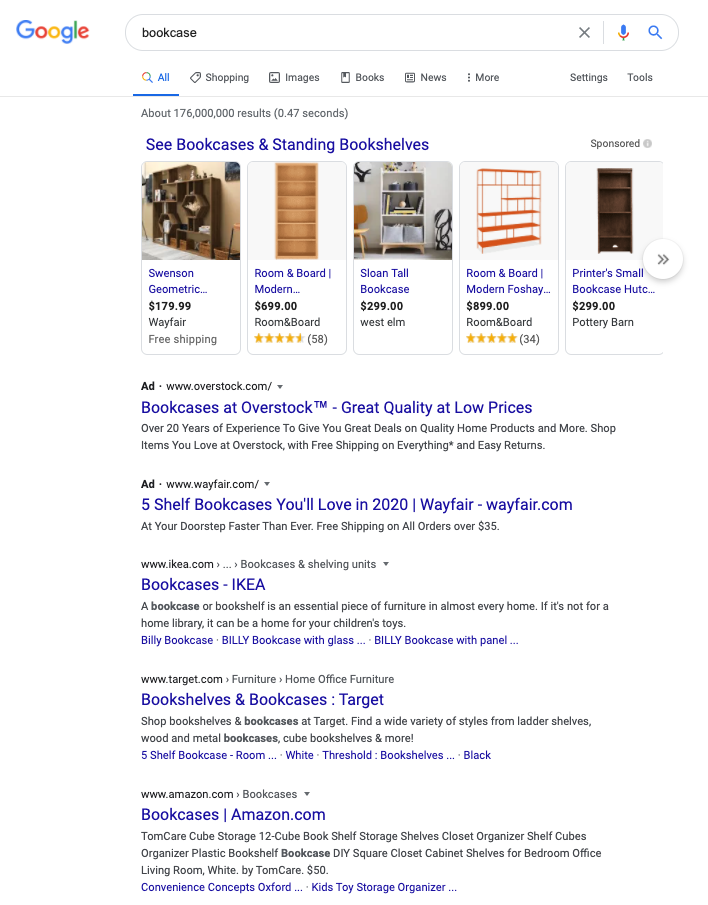
In this example, IKEA, Target, and Amazon are winning the organic spots (the ones underneath the carousel and the ads) SEO for the search term “bookcase.” If you get this strategy to work, you can make a lot of money with your online store.

SEO has a few benefits that are ideal for a business:

  • The traffic streams are very dependable, which means dependable revenue for your business.
  • Search traffic usually has the highest volume of traffic of any traffic source.
  • Even at scale, search traffic can be enormously profitable.

Dependable, high volume, and profitable. It’s everything you could want.

There is one major downside: SEO takes a lot of time and effort. Even if you’re pursuing a product category without any competitors, it can still take a good 3–6 months to see your site appear on the first or second page of search results for a keyword. The traffic volume will be pretty small until you get your page into the top 1–3 rankings on a keyword. If your category is even modestly competitive, it can take years of effort to get to that point.

If you go with SEO as the marketing strategy for your online store, you’ll focus on three things:

  1. Optimizing your product pages for product keywords.
  2. Building useful and engaging content for non-product keywords that are also in your category. This helps your product pages rank.
  3. Making your content so good that people will link to it as a resource.

When playing the SEO game, there are only two things that matter: content and links. So that’s where you’ll spend the bulk of your time.

Paid Marketing for Online Stores

Some online stores do exceptionally well with paid marketing. This includes sponsored posts on Instagram and Facebook, and paid results in Google search. Paid marketing involves ad placements you buy.

Instragram Paid Ecommerce Ad

But is paid marketing right for your business? My general rule of thumb: paid marketing is a great option if your product is the type of thing that could be featured in a mall.

Why?

The biggest paid marketing channels right now are Facebook and Instagram. Instagram in particular has gotten very popular for online stores in the last few years.

But think of the frame of mind that someone has while scrolling through a Facebook or Instagram feed. They’re relaxing for a few minutes, laughing at a few photos, and leaving quick messages for a few friends. They’re enjoying themselves. It’s a lot like how people shop at a mall. Sometimes, people are looking for a particular item, but a lot of people go to the mall to enjoy themselves. Malls have known this for a long time and stores have optimized around this browsing experience.

Products that sell effectively in a mall are also likely to do well with a paid ad on Facebook or Instagram. These products typically:

  • Consumer products. Business products have a much harder time on these channels.
  • Highly visual and eye-catching. This is why apparel companies do so well in malls and why apparel companies have been really aggressive on Instagram in the last few years.
  • Simple to understand. The offer needs to be understood within 3 seconds. If you have a more complicated sales process that requires more explanation, people will have scrolled past your ad long before you have a chance to make the sale.
  • An impulse friendly price point. If the price is too high that people need to carefully think through the decision, they’ll skip your ad and quickly forget it.

If your product meets all these criteria, you should seriously consider going the paid marketing route.

Google Ads (formerly AdWords) is one exception to this. Since you’re bidding on keywords within Google, you put your ad in front of people who are already actively searching for that type of product. As long as the keyword has enough search volume and the ad bids aren’t too competitive, it’ll work very nicely.

The biggest downside to paid marketing is that you’ll have to invest a bunch of money upfront before you know whether or not you can turn a profit. Many of us don’t have those thousands of dollars to invest without a reliable chance of getting it back.

Most paid campaigns don’t turn a profit initially; they usually take a lot of iteration and work before they start making a profit. Most professional paid marketers need 3–6 months before their campaigns become profitable. So be careful and make sure you don’t invest more than you can afford to lose here. If cash is too tight for you, choose one of the other marketing options.

Platform Marketing for Online Stores

This is a completely different direction than the two methods above.

Instead of creating your own store and using a type of marketing to acquire traffic, you’ll leverage one of the main ecommerce platforms:

  • Amazon
  • Etsy
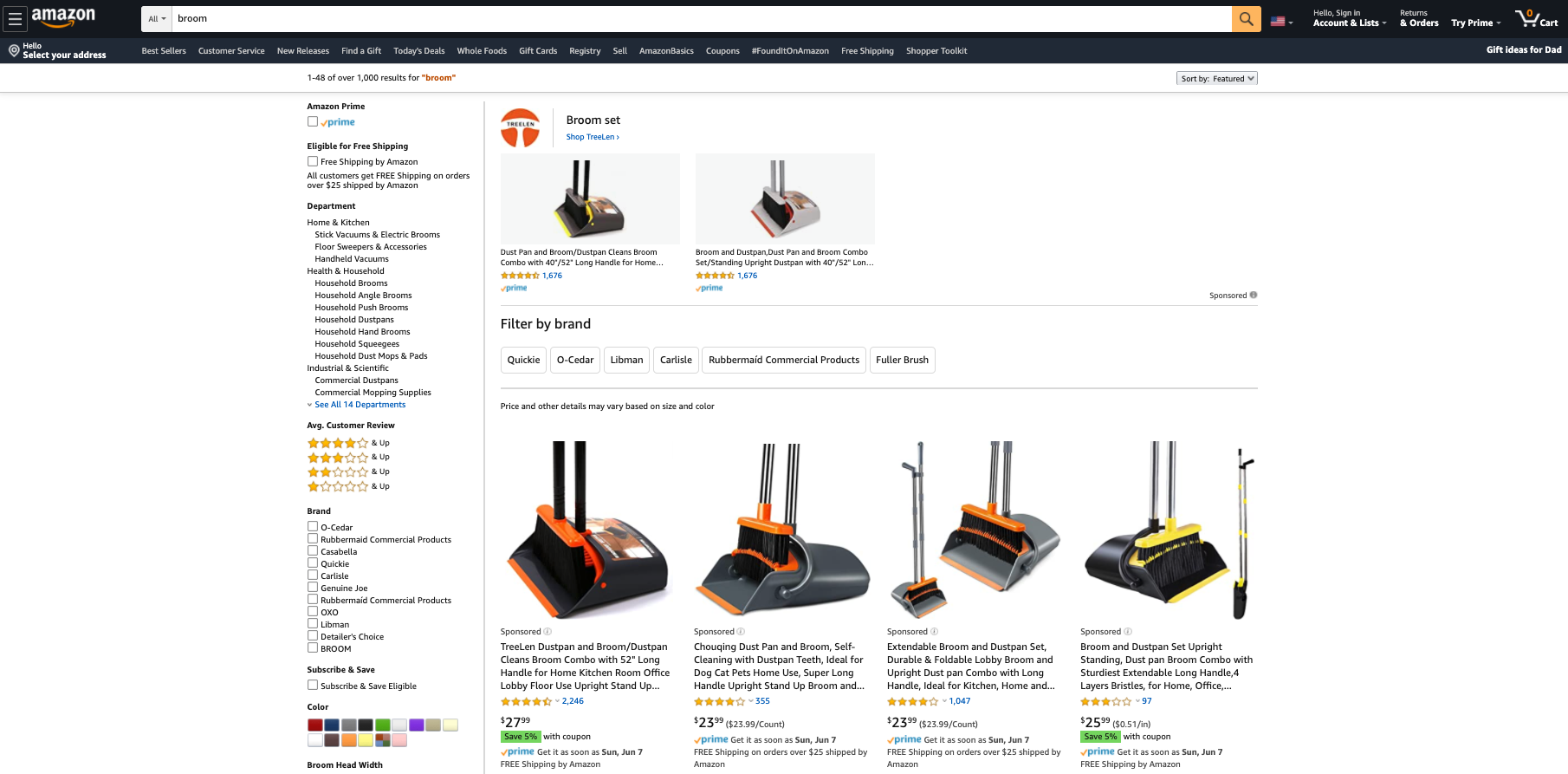
  • eBay

It’s definitely possible to be successful at any of these three. We recommend that most folks go after Amazon. Amazon’s audience is much larger which gives you more upside and just about every product niche already exists on Amazon.

The main exception is if you’re doing a craft business of some kind, like making your own bookends to sell to people. In that case, Etsy is a better fit since the audience expects more craft-oriented products.

eBay is still great if you’re doing a bunch of buying and reselling. But if you’re producing the same types of items consistently, the potential on Amazon is much higher.

You treat whichever platform you choose as your marketing channel. First, you’ll create your store on that platform and list all your products. Second, you’ll optimize your store to the best of your ability so the platform wants to feature your products.

Optimizing your store usually involves focusing on two areas:

  • Targeting your product pages to specific terms searched for within the platform
  • Getting as many 5-star reviews on your products as possible

As you improve your search terms and reviews, more people will see your products on that platform, which will produce more sales for you.

How to Choose the Best Type of Online Store for You

Let’s recap what we’ve covered so far. There are three types of online stores you can open. These types are based on the marketing strategy you employ.

The three marketing channels for an online store are:

  1. SEO — You’ll focus on content and links. Requires: time and patience
  2. Paid marketing — You’ll pay for placements. Requires: 3–6 months, money upfront, and a highly visual, simple-to-understand consumer product with an impulse-friendly price point.
  3. Existing platforms like Amazon, Etsy, and eBay — You’ll focus on winning the search terms within that marketplace and stacking up 5-star reviews. Requires: Committing to understanding that platform.

I strongly recommend that you pick one of these and build your entire business around it. That’s right, just one.

“Why can’t we do more than one? Wouldn’t we want to use multiple marketing channels for our store? More marketing means more sales right?”

I’ve made this exact mistake so many times myself. After a decade of working in online marketing alongside some of the most well-respected marketers out there, I’ve noticed one overwhelming trend: folks that are good at one type of marketing are generally pretty bad at the others.

Why would this be?

A couple of reasons why it’s hard to be good at more than one kind of marketing:

  • Every marketing channel is completely unique. While some marketing principles apply across all channels, you’ll have to learn all the tactics from the ground up. Constantly trying to learn new channels really slows you down.
  • Online marketing channels constantly change. What works right now won’t work in 12 months. Even though I’ve spent a decade doing SEO, I still feel like I’m relearning it every year. If you’re focused on a single marketing channel, you’ll have a much easier time keeping up.
  • Online marketing channels are power laws. That means the majority of the profits go to a few big players — everyone else fights for scraps. If you’re not one of the winners, you won’t be making much.

If you stick with one marketing channel, you’ll get through the learning curve a lot faster. The faster you unlock your marketing channel, the sooner you’ll be making real money with your online store.

OK, step one is done. It was a long one, but it’s important that you spend time on it — it’s the very foundation of every other choice you’ll make in the process of setting up your online store.

Step 2: Find the Right Product Niche for Your Online Store

After choosing your marketing strategy, picking your product niche is the most important decision that you’ll make. Slow down and take your time to do some genuine research here.

A huge mistake that I’ve made in the past was jumping into hobby categories. Yes, being personally interested in the category really helps with building the business. But it’s also a common trap for picking a category that won’t support a thriving business. If there isn’t much demand in my niche, it doesn’t matter how great of a job I do, I’m doomed to fail from the beginning.

There are a few things I look for in a good product category for an online store.

First, avoid picking a category that’s too unique.

A common best practice in marketing is to differentiate yourself. And this is powerful advice — it’s a huge advantage when you have it.

It’s also tricky to find a genuine way to differentiate yourself that the market is willing to pay for. There are countless ways to differentiate any given product, but only 1–2 actually matter.

Does the top-rated toothbrush holder on Amazon need to do something wacky and unique? Not at all. It needs to be simple, easy to use, reliable, affordable, and have a ton of reviews on Amazon. That’s it.

Instead of trying to differentiate yourself from every other product in your category, find a category with competitors that aren’t dominating their marketing channel. Are the Amazon reviews low for all the top products? Are the SEO results of low quality? Are there no companies putting serious ad dollars behind a product? If the answer is yes, there’s an opportunity for you to out-compete them with your marketing.

A moderate price is also key.

Avoiding product categories with a low price makes a lot of sense. After all, if you only earn $1 in profit for each sale, you’ll have to sell 100,000 products every year to support yourself. After taxes and overhead, that’ll give you about $50–60K per year to live on.

Selling 100,000 of anything is a lot of work. No easy task.

Now let’s assume that you’re selling something for $80 and making $40 in profit on each sale. To make $100,000 per year, you’ll only need to sell 2,500 items. That’s much more manageable.

However, you also want to avoid selling something with a price that’s too high. As pricing changes, so does buying behavior. Prospects demand more proof. They may even demand a completely different buying process. How many people buy cars without test driving them at a dealership? Most don’t. They want to see the car and talk to a real person before making a purchase that big. Cars require a lot of extra work and sales skills to sell effectively because of their higher price point.

We recommend finding a product that you can sell between $50 and $100 dollars. It’s high enough that sales will add up quickly for you. It’s also low enough that the buying process will be straightforward.

Lastly, make sure there’s demand.

You can usually tell if there’s demand by doing some category research on your marketing channel. For SEO, Google Ads (formerly AdWords) has a Keyword Planner that tells you how many times something is searched in Google every month. If the keyword for your product gets less than 1,000 searches per month, it’s probably too small to build a business on.

Same thing with Amazon. If you have trouble finding products in your category with more than 100 reviews, it’s probably too small.

These days, I’d much rather pick a category that I have zero experience in but has genuine demand. That’s much better than realizing that a passion category of mine has zero demand later on.

Step 3: Pick a Name for Your Brand

The bad news: everyone hates this step.

Trying to find a good name that’s not already taken gets really annoying. The websites are taken, the best names have been trademarked, and you’ll feel like you’re hitting dead-end after dead-end.

Good names are tricky to find.

Whenever I look for a new name, I feel a temptation to cut corners. After several full days of brainstorming names and hitting dead-ends, all I want to do is pick a less-than-ideal name just so I can move on to the next step.

I have to tell myself that it’s worth the effort to keep looking. It’ll pay off if I keep going and it always does.

Here’s the naming checklist I use:

  • Easy to spell. I never want any friction when people are trying to find my site.
  • 3 words or fewer. I like to keep it at short as possible so it’s easier to remember. 1 or 2 words is ideal, 3 is still good.
  • Pass the Bar Test. I should be able to say the name in a noisy bar without repeating it. That’s a great sign that it’s easy to understand. This is huge for word-of-mouth marketing later.
  • Can get the .com domain. Every online story needs a .com. It’s become too much of a standard. Some folks use weird domains like company.online or company.io. In my opinion, this causes problems later because whoever owns company.com will know how valuable it is once you try to buy it. I either buy the domain early or find one that’s instantly available.
  • Relevant to your category. Make sure the name relates to your product category in some way.
  • No trademark conflicts. Any corporate law firm can do a quick check for you on this. Since legal time is expensive, find 3–5 name options that check all the above items. Then have an attorney check for the trademarks all at the same time. It’s rare to not have at least one of them work.

We have an in-depth guide on how to pick and buy a domain name here.

Once you have your name picked, grab the domain using your domain registrar. Or if you’re buying the domain from someone, get it transferred into the domain registrar that you want to use for the long term.

Step 4: Open Your Online Store

If you’re pursuing an SEO or paid marketing strategy, this is a super important step. The quality of your site has a huge impact on how much of your traffic will turn into buyers.

First, we strongly recommend Wix for building your site.

• 14-day free trial
• Drag and drop site builder
• Integrated payment processing
• 500+ ecommerce templates
• Try Wix for Free

There are other tools out there like Shopify and Bigcommerce — none of them compare to Wix. It’s super easy to use, has all the features that you’d ever want, and a very reasonable price.

The one exception to this is if you’ve already built out a blog with a large audience and want to add a small online store to it in order to sell a few items. In this case, adding WooCommerce to your WordPress is a good option.

Otherwise, always go with Wix.

We’ve put together a detailed guide on creating an ecommerce website here.

And if you’ve picked one of the platforms like Amazon, treat your company and product pages with great care. Make the copy as compelling as possible. Use every feature that they give you. Get the highest quality photos that you can. Do everything. Really make your pages stand out.

Step 5: Do a 60-day Marketing Burst

All of our stores start from scratch.

When we’re just getting started, any bit of momentum goes a long way.

That first review, that first page that ranks in Google, that first purchase using a paid ad — it’s life-changing.

At this stage of the process, I never worry about systems, scalability, or trying to do things in an efficient way. I’m looking for momentum any way that I can get it, no matter how much outreach or personal work I have to do.

The goal at this stage is to put in a huge burst of personal effort and get some momentum. Even if you have to do things that you know aren’t sustainable over the long term.

Here are a few examples:

  • I might tap my personal network to see if anyone is willing to do an interview with me and publish it on their own site. This will help me get a few initial links to my site.
  • I could ask personal friends and relatives to leave the first couple of Amazon reviews.
  • I’d try spending some of my own cash on paid ads to test if the offer produces revenue at all.

I’m looking for any marketing idea that involves my time but also allows me to quickly get my first few wins.

At this stage, do some research on your marketing channel and come up with a list of 50 ideas that you could personally do yourself. Then prioritize them and plan a 60-day Marketing Burst. Ship as many of those ideas that you can within those 60 days. Work long hours, drink too much coffee, and really push yourself during that period.

By the end of the 60-day Marketing Burst, some of your marketing ideas will have worked and you’ll have your first couple of sales. You’ll also have a small but steady stream of sales coming in because you’ve focused on a single marketing channel. That steady stream is enough to start building your marketing flywheel on.

Step 6: Build Your Marketing Flywheel

Once you have some initial momentum, it’s time to start building the marketing machine that will grow your business around the clock without you having to personally accomplish every task.

In the early days on Amazon, you’ll need to personally ask for a lot of your first product reviews. But that’s not sustainable.

Instead, look for marketing tactics that help create Amazon reviews for you without you asking for them.

Here’s an example.

A popular tactic on Amazon is to ask customers to leave a review. Some will even promise a discount code on the next purchase if a review is published.

You can automate that tactic. Have an assistant send the same templated email to every new customer, asking for a review and promising a discount code on their next order. All the platforms allow you to message customers personally through the platform. So while you can’t email blast all your customers at once, you can have an assistant send messages out one-by-one every week on your behalf. That’s a repeatable flywheel that doesn’t take up your time.

A quick side note on this review tactic: Before you try something like this, make sure to check the guidelines and policies of the platform you’re on. There are always rules about these sorts of things and every platform is slightly different. Be careful to not push things too far, putting your store in danger of getting removed entirely.

Look for as many of these repeatable marketing flywheels as you can.

Instead of creating content yourself, can you pay someone for content? If you did the keyword research, made a list of requirements that you want on each piece of content, and hired someone else to write the post itself, you could create a lot more content to help you win with an SEO marketing strategy. That’s a flywheel.

Instead of optimizing your paid ads yourself, can you delegate that? If your conversion rates are consistently improving and your cost to acquire a customer is going down, that lets you buy more customers with the same amount of capital. That accelerates your business without your personal effort. Another flywheel.

Focus on your core marketing channel and then build a marketing flywheel that will keep your online store growing without any effort from you. This is the key to opening an online store, generating sales quickly, and accelerating its growth.

So what are you waiting for?

Start your free trial with Wix today and start your online store in just minutes. Then follow the rest of my tips above to get an edge on the competition.

• 14-day free trial
• Drag and drop site builder
• Integrated payment processing
• 500+ ecommerce templates
• Try Wix for Free


from Quick Sprout https://ift.tt/2LgZlbe
via IFTTT

How to Create a Website With WordPress

Creating a website used to be a massive project. Expensive, too.

Everything had to be built by hand and businesses needed to work with an online marketing agency that would charge them tens of thousands of dollars to build the site. If you wanted a professional-looking site, that was your only option.

Things have gotten a lot cheaper and easier over the years.

Note that there’s a number of approaches you can take to creating a website. More on that later—let’s dive right in.

A Step-by-step Guide to Creating a Website With WordPress

I’ve broken down the 9 simple steps to create your website from scratch. You’ll easily be able to run through these steps over the next 120 minutes.

Step 1: Pick a name and find a domain for your website

These are not two separate steps, unfortunately.

I really wish I could sit down, pick any name that I want for my business, and be able to create the site that I want around that name. Now that the internet is a couple of decades old, we all have to face the reality that most of the good domains have been taken.

Here’s how a naming session always seems to go for me:

  1. In a moment of inspiration, we think of an amazing name.
  2. We hold on to this name for months, maybe even years.
  3. It’s time to start the business, so we go to purchase the domain.
  4. The domain is taken.
  5. We try a dozen small variations of our original idea, all taken.
  6. No biggie, we thought of one brilliant name, we’ll think of another one.
  7. Backup idea #2 = taken.
  8. Backup idea #3 = taken.
  9. Backup idea #4 = taken.
  10. Despair sets in.
  11. We start considering names that we don’t actually like, hoping that anything is available.
  12. We come up with 2 or 3 options that we don’t like at all.
  13. Then we spend a week trying to come up with a name that’s both available and a name that we can live with.
  14. Finally, we find one.

Websites have also become so embedded in our day-to-day lives that it’s better to change the name of the business to match an available domain than it is to pick a poor quality domain. Through this process, I almost always end up with a completely different name than I originally intended.

This is why I consider the “naming my business” and “buying the domain” steps for creating a business to be the same step. I try to only lock myself into a name once I have the domain.

We put together an in-depth guide on buying domains here.

The good news is that the rest of these steps are a breeze once you have your domain purchased. It’s the first and hardest step to create your website.

Step 2: Register your domain name

Real quick, let’s sort out the difference between a domain registrar and a web host.

A domain registrar is a company that specializes in buying (registering) domains.

A web host, on the other hand, specializes in running servers that host websites.

Every web host will desperately try to get you to also register a domain through them. The reason is that it’s a great upsell for them. They’ve spent most of their resources building out a hosting service, then they offer domain registration as a convenience, increase the price a bit, and collect a nice chunk of extra profit from you.

My philosophy is to buy things from businesses that specialize in that exact thing. Prices will be better and so will quality. That’s why I also use a domain registrar for buying domains and a web host for hosting. I never mix up the two.

The best domain registrar is Domain.com. That’s where I have all of my domain names.

We put together a detailed review of domain registrars here.

Step 3: Decide what kind of site you are creating

Most guides on creating a website will push you into using WordPress. It’s the most popular and flexible website builder. And that’s usually a good recommendation.

But there are a few situations where I recommend different options.

Simple Portfolio or “Business Card” Sites

Many businesses need a simple website that tells people a few things:

  • Who the business is for
  • What the business does
  • Sometimes a portfolio that shows off some work
  • Contact info

This kind of site gives the basic info for the business, nothing more. If this is what you need, Wix is your best option for creating your website. It’s incredibly simple to use and will give you a professional site at a very low price. It’s perfect for small businesses.

They’ve created the simplest and easiest website builder out there. Truly, it’s a joy to use, and makes the most sense when you just need a clean, professional-looking site that gives some basic info on your business. It’s perfect for small businesses, freelancers, and artists.

Ecommerce Sites

If you’re planning on building an ecommerce store for your site, don’t use WordPress. We have an entire post here on when to use WordPress for ecommerce and when not to. The short story: it rarely makes sense to use WordPress for ecommerce.

The best option, by far, is Wix again. There used to be more competition in the ecommerce tool space, but Wix got too far ahead of even Shopify.

If you’re going this route, we have a 9-step guide on how to create an ecommerce website. We also have a guide on how to start a store that drives real sales. Both of those guides will get you pointed in the right direction.

Blog Sites

If you know you want a blog or are planning on doing lots of content, start on WordPress. The majority of this guide is around building a WordPress website. (We also have a detailed guide on starting blogs here.)

Most websites are really just blogs. Some of the biggest, and most well-known websites on the Internet are blogs. WordPress powers over 30% of the entire internet. So it’s the only real option for starting a blog these days.

What about Joomla or Drupal? Or Typepad?

WordPress left all those other platforms in the dust about a decade ago. They’re not even legitimate options at this point. Pick WordPress — there isn’t a single situation where you’ll regret it.

When I originally started with this online thing, Drupal sites were still pretty common. I partnered up with an engineer friend of mine and we did a lot of freelance work migrating sites from Drupal to WordPress. Even back then, WordPress was a clear winner.

Now when I come across a site on any of these other tools, it’s kind of exciting. It’s like finding an ancient artifact. “This still exists!? How fascinating!”

Don’t use any of these other tools, stick to WordPress.

Everything Else

If you’re not sure or have another vision for your site outside the categories above, use WordPress. It’s the most flexible platform out there. It will do ecommerce, it’ll do simple portfolios, it’ll do massive content sites, it’ll do Fortune 500 marketing sites, it’ll do it all.

You might have to customize it more than other platforms in some situations but you can make WordPress do whatever you want it to. And just about anyone in online marketing knows their way around WordPress so you’ll be able to find plenty of people to help you when the time comes.

Whether you want to build your site by hand or you have an online marketing agency to do it for you, you should still build on top of WordPress. It’ll shortcut a lot of the programming work and give you the ability to edit basic items on your site without having to edit any code. I’ve managed marketing sites of venture-backed tech startups that employed dozens of engineers — we still had our marketing site built on top of WordPress. It’s the standard choice.

Step 4: Get a host for your website

For the rest of this guide, I’m going to assume that you’ve picked WordPress to create your site. If you want an ecommerce site, skip the rest of this guide and follow our guide on creating an ecommerce site.

WordPress is the tool that you’ll use to build your website. But you also need a host that will store your site and make it available to anyone who visits.

The best place to go for most people is Bluehost.

We have an entire guide here that goes through all the best web hosts.

Hosting plans usually start around $5/month.

Step 5: Install WordPress

Just about every website host has a 1-click install of WordPress. Bluehost, the hosting provider I recommend the most has this feature. But if you have trouble finding it, contact support and they’ll be able to walk you through it.

Step 6: Point your domain to your host

Let’s do a quick recap.

  • You bought your domain using a domain registrar.
  • You signed up for a hosting plan.
  • You installed WordPress on your host.

Now you’re going to connect all that stuff together by pointing your domain to your host. Then when people go to your domain, they’ll end up on your website.

There are a few technical settings you need to apply. This involves configuring a few nameserver settings on your domain registrar for your domain. Your host will give you the correct settings; you’re looking for their nameserver settings.

If you get stuck, contact your host and they’ll give you all the info you need.

Once you have the nameserver info from your host, go into your domain registrar and configure those settings for the domain that you want to point at your site. Once you’re done, it’ll look something like this:


Create a Website Name Servers

Step 7: Install a WordPress theme

Think of WordPress as the guts of your site, it’s all the pumping that makes your site work.

WordPress uses themes to determine how your website looks. This makes it really easy to change how your site looks without having to rebuild your site from scratch. Swap out your old theme for a new one and ta-da! Your design will look completely different.

These days, I purchase all my themes from StudioPress.

Heads up, WP Engine bought StudioPress and now includes all the StudioPress themes in its hosting plans. WP Engine is more expensive but it’s perfect for serious bloggers. It’s a great way to save money on your theme if you are planning on building a large site to begin with. WP Engine is another one of our recommended hosts if you’re looking for the best. The downside is that WP Engine tends to be more expensive than other hosts. It’s probably overkill if you are just starting out, or creating your first website.

Back to themes, are there other options?

You betcha. ThemeForest and Pixelgrade has a marketplace of WordPress themes. There are literally tens of thousands of themes to pick from. They’re usually in the $30–60 price range. When looking for theme, I rank them by the most popular or the highest rating. Then I pick one I personally like.

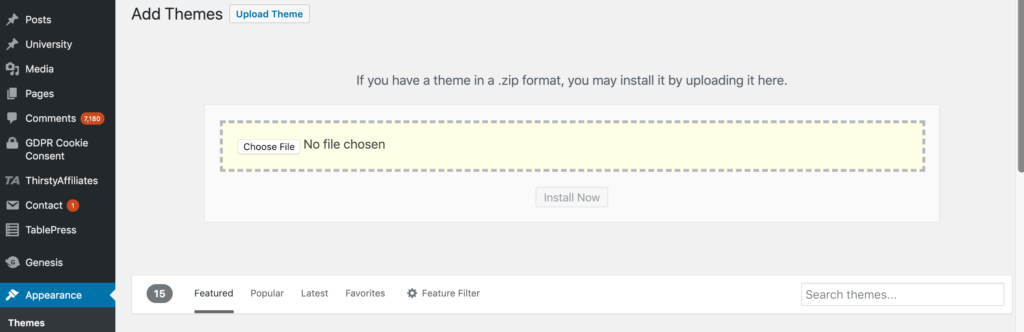
After you’ve purchased a theme, go to the WordPress Theme settings and upload your theme. The Theme settings are under Appearance in the WordPress sidebar menu. You’ll have to click through “Add new” and “Upload Theme” in order to see this option to upload:

Upload WordPress Theme

Go ahead and upload the .zip file you received when you purchased your theme.

After it’s uploaded, you’ll also have to click “activate” on the theme in WordPress to make it go live.

Step 8: Add content to your website

Now the fun part — it’s time to create the individual pages of your site.

You’ll do this within WordPress.

WordPress has two types of content: pages and posts.

Think of posts as blog posts that are published under a “blog” section of a site. If you’re not planning on having a blog, then you can skip posts entirely.

Pages are the more permanent pages on your website. Like your About or Contact Us pages. When you’re first creating your website, you want to get a batch of pages live so your site feels real.

Every website has a few standard pages you should create:

  • Homepage – Your WordPress theme usually has settings for this page.
  • Contact Page – Create a new page and install a WordPress form plugin so you can add a form to the page.
  • About page – Tell your story and why you’ve started your business.
  • Product or services pages – For the main services or products that you’re offering, it’s a good idea to create a dedicated page for each.
  • Blog – If you’re building a blog, make sure all your posts get listed here.

This list will get you started. You can always add more later.

Step 9: Continue evolving your website

At this point, you have a fully functioning site that looks great.

I’m not going to lie, there’s a lot of extra configuration you can do to your site: you can add WordPress plugins that upgrade your site, build out a blog, add an email list, grow traffic, the list is endless.

You don’t have to do any of this extra stuff — it’s all optional. It depends on your priorities and goals.

A website is an ever evolving thing. The way it looks after you first create it, won’t be how it looks a couple months later. At least that is the case if you are actively working and growing your website.

When you’re ready, these guides will walk you through the extra stuff that’s worth considering:

Our General Take On Building a Website

Don’t get confused by all of the different options for creating a website. For a more in-depth look at how we think about this, check out our preliminary guide on how to create a website.

WordPress is King

In most cases, we highly recommend to build your website with WordPress. It’s an open source platform that allows you to run your website with very little technical expertise.

Some of the biggest websites on the Internet are built on WordPress. TechCrunch, The New Yorker, Variety and MTV News, just to name a few.

It’s also the most popular blogging platform, so there are hundreds of thousands of smaller websites that use WordPress.

WordPress is used by 33.4% of all the websites, and has a content management system market share of 60.3%.

Much of our content is centered around WordPress because we use it for all of our websites outside of Ecommerce.

Here’s the guide on how to create your website on WordPress.

Wix for Ecommerce

For Ecommerce, we like Wix — which is an Ecommerce website builder that allows you to get an online store up and running quickly.

The reality is that creating and running an online store can be a huge pain. Wix takes that pain away. That’s probably why they are growing so quickly.

Here’s the guide on how to create your website on Wix.

The Dozens of Other Options

If you’re reading this right now, then you most definitely fall into the category of someone that should be using WordPress or Wix.

In rare cases, it might make sense to create a website using Squarespace or a similar website builder.

In other (very) rare cases, it might make sense to have a custom-built website.

More Guides On Creating and Managing a Website

Below, a master list of all our best resources on creating a website.

For general information:

How to Plan Out Your New Website

How to Buy The RIGHT Domain Name – A Detailed Guide

How to Develop Your First Brand Identity on a Budget

The 5 Best Website Builders

The 5 Best Domain Registrars

10 Trending 2019 Website Color Schemes

9 Places To Get Website Images (Paid and Free)

The Best Website Fonts That Go Together in 2019

13 Website Design Best Practices

7 Reasons Why You Do NOT Need to Hire a Website Designer

The 22 Key Elements of a High Quality Website

How Much Copy Should You Write on Your Homepage?

10 Contact Page Techniques That Make People Contact You

How To Create an About Page That Matters

How to Make a Wix Website in 6 Easy Steps

For useful information on optimization as your site gets up and running:

Website Speed

Website Usability

Website Security

Website Mobile Friendliness

5 Easy Steps to Creating a Sitemap For a Website

Should You Switch Your Site to HTTPS? Pros and Cons

The Top 10 Principles That Boost Your Website Loading Time

More about web hosting:

You need a web hosting provider in order to have a website.

We recommend Bluehost for most people. For advanced WordPress users, with high traffic websites, it could make sense to move to WP Engine at some point.

More about The Best Web Hosting Companies here.

Here are some additional guides to help you learn more about web hosting:

The Best Web Hosting for WordPress

The Best Free Web Hosting

The Best Cheap Web Hosting

The Hidden Costs of Website Hosting

More about analytics and reporting:

An analytics tool is important if you want to know what’s happening on your website. It tells you how much traffic you’re getting, where it’s coming from, and what people do on your site. Google Analytics is the standard. That’s what we use for Quick Sprout.

Read more about why Google Analytics is the best.

Installing Google Analytics is easy. Consuming the reports is a bit more complicated.

Here are some guides to help:

The 2 Website Analytics Tools Pros Actually Use in 2019

Setup Google Analytics in 3 Steps – The Beginner’s Guide

10 Vital Customizations to Make in Google Analytics

A Guide to Google Analytics Add-on for Google Sheets

How to Track Your Leads with UTM Parameters

More about building and optimizing with WordPress:

A WordPress website is basically made from what’s called a WordPress Theme and WordPress Plugins. All of the features of your website will come either from the theme or the plugins you install.

To help you get started, we reviewed all of the best WordPress Plugins across the most popular categories.

Here’s an in-depth review for each category:

Best SEO Plugins for WordPress

Best WordPress Gallery Plugin

Best WordPress Backup Plugin

Best Form Plugin WordPress

Best WordPress Cache Plugin

Best WordPress Security Plugin

Best WordPress Calendar Plugin

Best Google Analytics Plugins for WordPress

Best WordPress Popup Plugin

Best WordPress Directory Plugin

Best WordPress Booking Plugin

Best Membership Plugins for WordPress

Best Social Media WordPress Plugin

Useful information for ecommerce websites:

If the primary purpose of your website is to sell products, you’ll need an ecommerce website. We recommend keeping it simple and going with Wix.

Check out our review of the Best Ecommerce Platforms, to get a comparison to the other options out there.

Get the step-by-step on how to start an online store.

Our guide on how to create an Ecommerce website.

More useful guides on building an Ecommerce website:

WordPress Ecommerce

How to Transfer Your Website to Shopify

Best Ecommerce WordPress Themes

Best Ecommerce Website Builder

Checkout Process Design

Ecommerce Color Schemes

How to Create a Trust Seal On Checkout Page

Tips on starting a blog:

When you really break it down — most websites are blogs, and blogs are websites. They have become one and the same. The most popular blogging platform is WordPress, and that is also the same platform we use for any other website, blog or otherwise.

If you’re thinking about starting a blog specifically, and that is why you’re trying to figure out how to create a website…we have over 40 guides on blogging.

Here are the blogging guides specific to getting started, and building your blog:

How to Start a Blog

Best Blogging Platforms / Blog Sites

Best WordPress Themes for Blogs

Blog Design

11 Things I Wish I Knew Before I Started My First Blog

The Top 12 Tips for Running a Successful Video Blog

10 Lessons Seth Godin Can Teach You About Blogging

100 Lessons Learned from 10 Years of Blogging

Creating Your Own Website: In Summary

Creating your website might seem overwhelming at first. It really comes down to starting with these simple steps:

  1. Is your primary purpose to sell things on your website? If yes, then focus on Wix, if no, then focus on WordPress.
  2. Use the guides on Quick Sprout to help you through the process. It’s a learning curve for sure. Taking the time to set up everything correctly will help you grow your business and your traffic much faster later on.
  3. Don’t hesitate to reach out to us directly via email with questions. We’ll help however we can.


from Quick Sprout https://ift.tt/31L2TJ0
via IFTTT